
SolidNetWork License Manager
The SolidNetWork License Manager hosts floating licenses for SOLIDWORKS Desktop. It is available in the SOLIDWORKS Installation Manager.
You can get it here:
👉 SOLIDWORKS Desktop Installation
It is possible to install only the SolidNetWork License Manager without installing a SOLIDWORKS license.
Minor versions (Service Packs) do not apply.
The License Manager can provide licenses for older versions.
Server – Installing the SolidNetWork License Manager
Before users can launch SOLIDWORKS, SolidNetWork must be installed and activated on their PC.
-
Locate the installation files for your current SOLIDWORKS version and run Setup.exe.
-
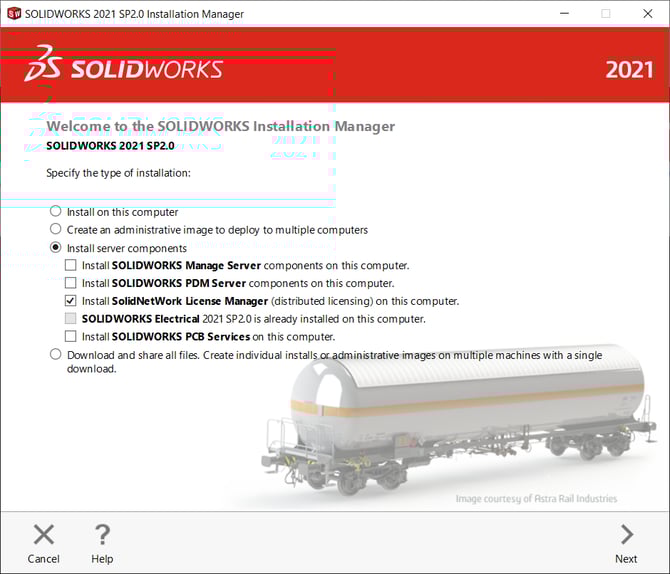
Select Install server components and Install SolidNetWork License Manager, then click Next.
-
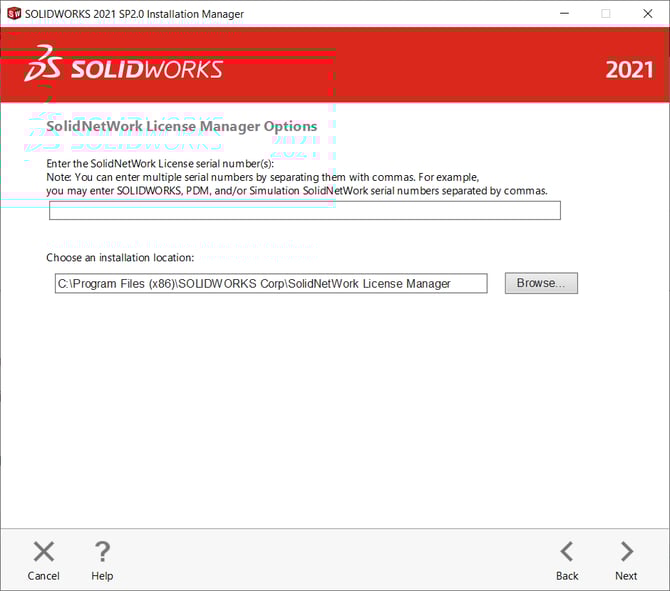
Enter all SOLIDWORKS network serial numbers. Multiple serial numbers can be separated by commas (,).
-
Choose the default installation location:C:\Program Files (x86)\SOLIDWORKS Corp\SolidNetWork License Manager.
-
Click Next.
-
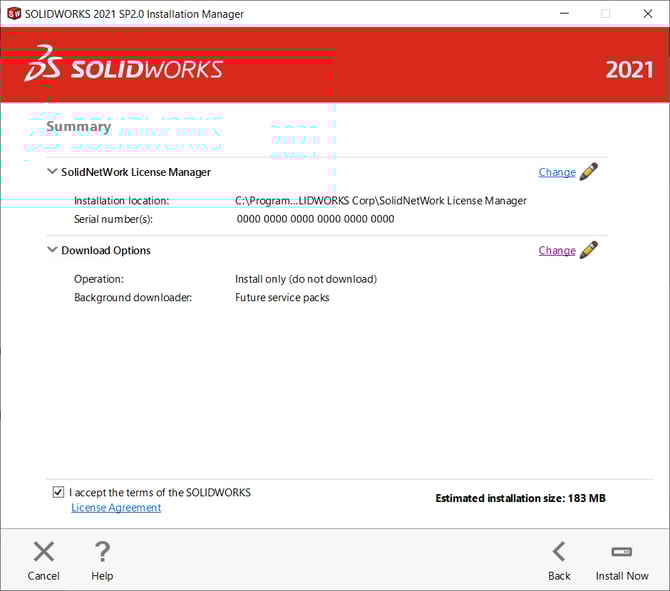
Accept the SOLIDWORKS license agreement and click Install Now to begin.
-
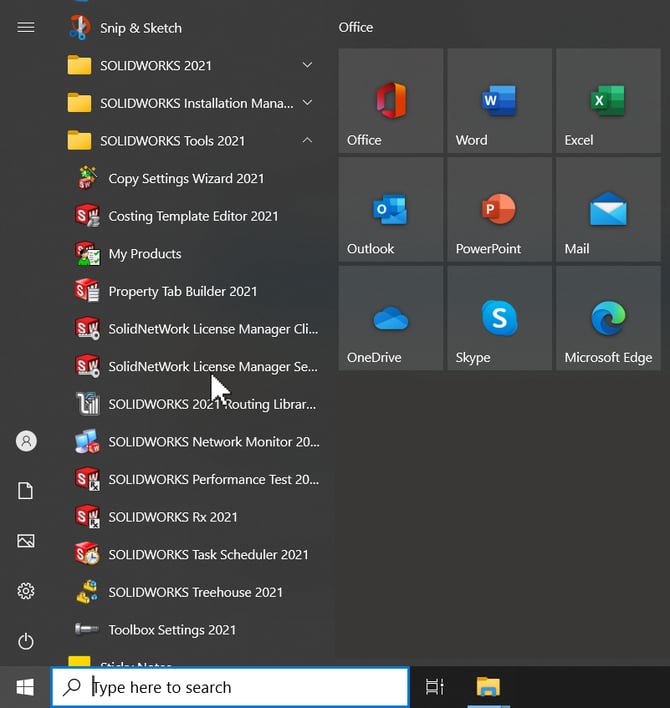
Click Finish, and you will find the SolidNetWork License Manager in the Start menu.
-
Launch the SolidNetWork License Manager application via the Start menu:
Start > SOLIDWORKS Tools 20XX > SolidNetWork License Manager Server.
If SOLIDWORKS is installed on the same machine, the Start menu will display two License Manager shortcuts:
- One is the Server Administrator version (5 tabs at the top).
- The other is the Client version (4 tabs at the top).
-
If this is a new License Manager installation, a dialog will indicate that no SolidNetWork license exists: “Do you want to activate now?” Select Yes.

-
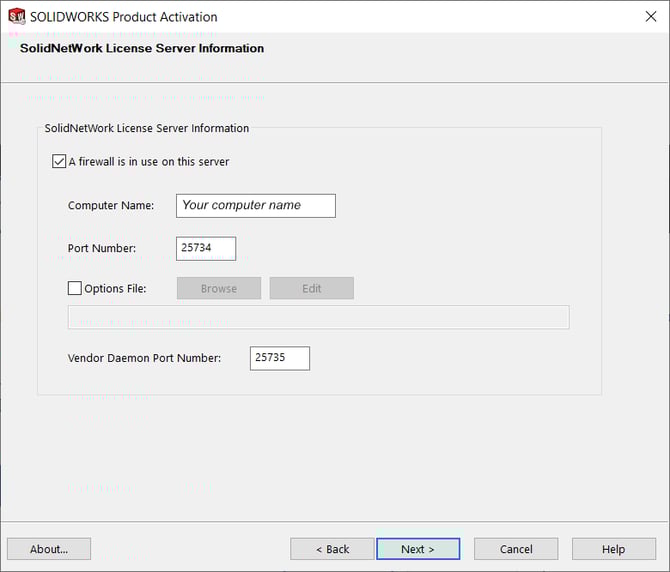
This dialog allows you to customize TCP ports for connectivity between the client and server.
The default port number is 25734. It can be changed if the port is already in use by another application.
If firewalls are present, select A firewall is used on this server. Port 25735 will then be used by default. -
Click Next.
-
Select the licenses to activate and the activation method. If the server has an active Internet connection, select Automatically over the Internet and click Next.
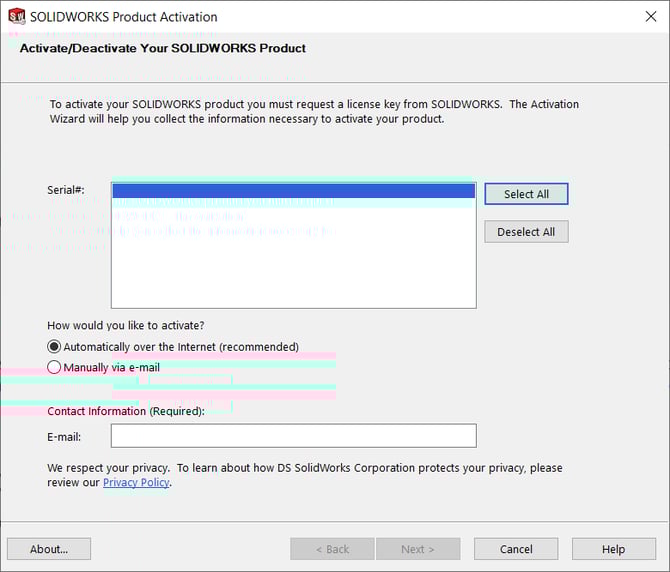
If the server does NOT have Internet access:
- Select Manually via email to save a file that can be transferred to another computer with Internet access (e.g., via USB).
This file, called SWActivateRequest, can be emailed to activation@solidworks.com. - You will receive a reply within minutes with a file called SWActivateResponse.
- Copy this file to the server and return to the manual activation process.
Use Open to load the SWActivateResponse file and complete activation.
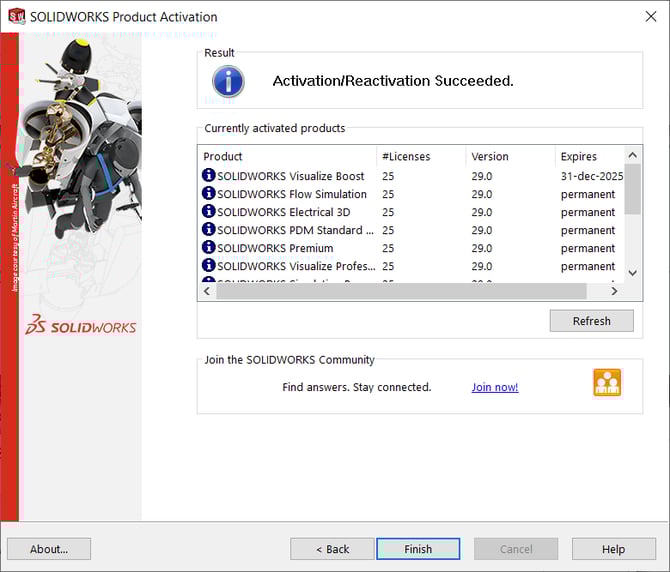
If you do not receive a response, check your Junk/Spam folders. - After activation, a confirmation screen will appear indicating success. Select Finish.
If you encounter difficulties during activation, contact your SOLIDWORKS reseller for technical support.
- Après l'activation de la licence, un écran de confirmation s'affiche, indiquant que l'activation s'est déroulée avec succès. Sélectionnez Finish (Terminer). Si vous rencontrez des difficultés lors de l'activation, contactez votre revendeur SOLIDWORKS pour obtenir une assistance technique.
Clients – Installing SOLIDWORKS
The next step is to install SOLIDWORKS on client machines that will connect to the server running the SolidNetWork License Manager.
- Specify a SolidNetWork license serial number during installation. The SOLIDWORKS Installation Manager will identify this computer as a SolidNetWork license client.
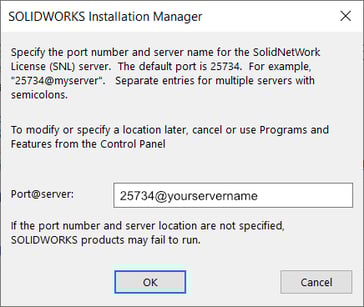
- The Installation Manager will prompt you to enter the computer name and port number of the SolidNetWork License Manager to connect the client to the license server.
- When installing SOLIDWORKS, log in as a local administrator to ensure full permissions.
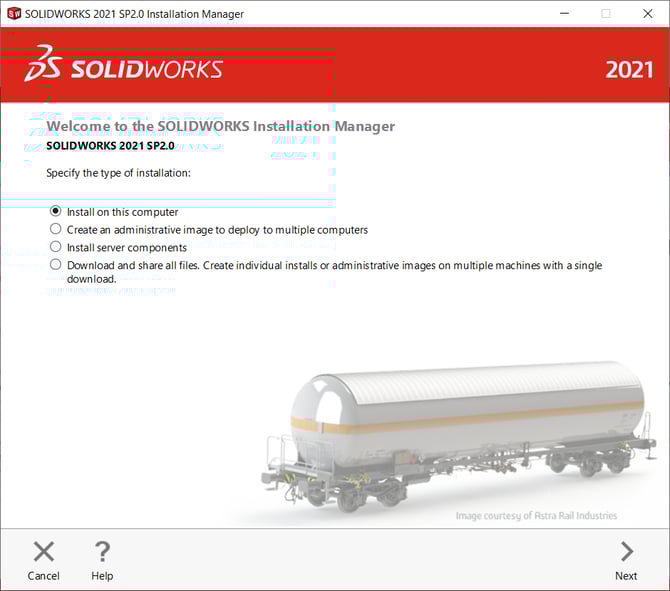
- Start the SOLIDWORKS installation by double-clicking Setup.exe in the download folder.
- If Install on this computer is selected, click Next.
Enter Your Serial Number
- Enter the SOLIDWORKS serial number(s) for the purchased product(s).
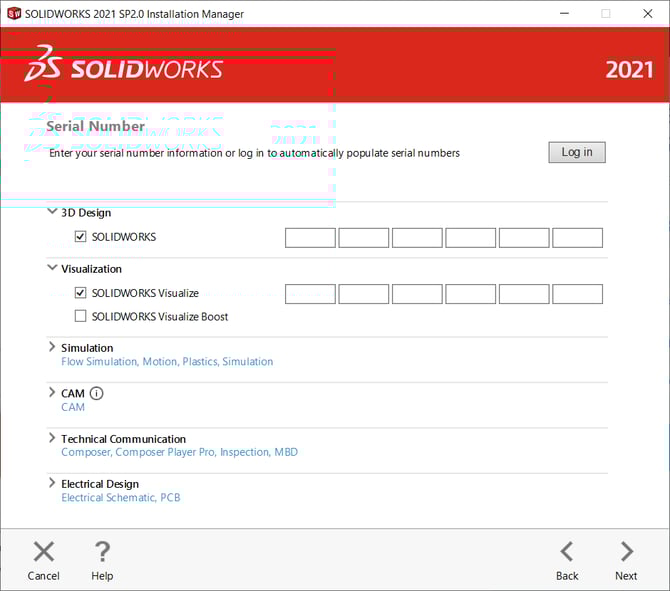
- Click Next to continue.
If an existing version of SOLIDWORKS is found on your machine, you can:
- Upgrade your existing version
- Download a new separate installation
Optional: Change the products to install.
The License Manager will determine which products you are authorized to install based on your serial number, so you can usually keep the default selection.
- Use the default installation options unless you want to exclude specific applications.
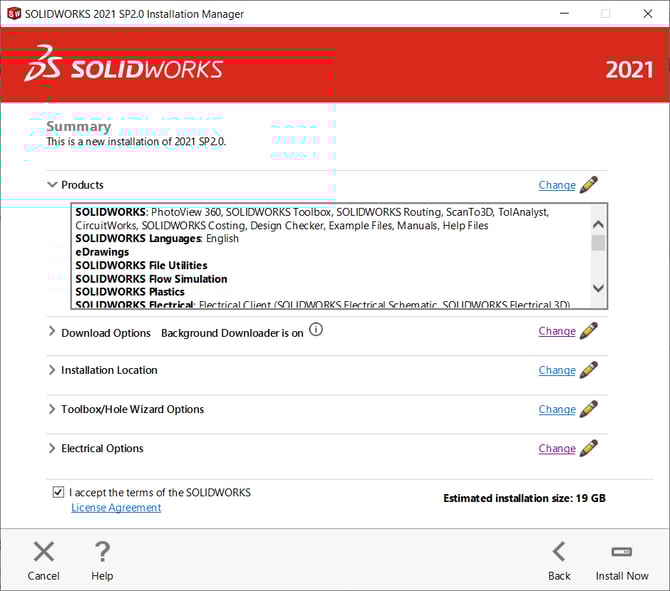
- Click Change next to Products to view the applications to be installed and their file sizes. You should see all purchased products listed. Contact your VAR if you believe something is missing (only English is installed by default, but other languages can be selected under Products).
- Click Back to Summary to return.
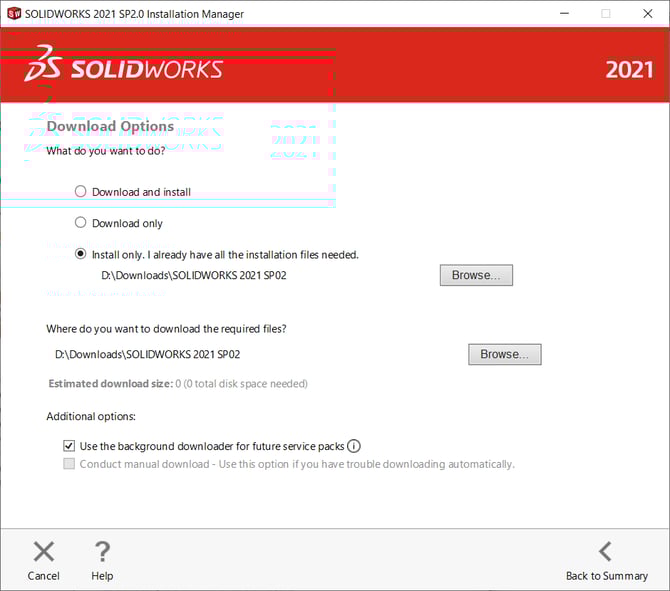
Optional: Download Options
In the download options, you can change settings such as the download location, how files are downloaded, and whether to install downloaded files.- Click Change next to Download Options:
- Download and Install: All missing files required for installation will be downloaded.
- Download Only: Obtain the full installation file set for sharing.
- Install Only: Used if you already have the full installation files.
- Click Back to Summary when finished.
Optional: Installation Location
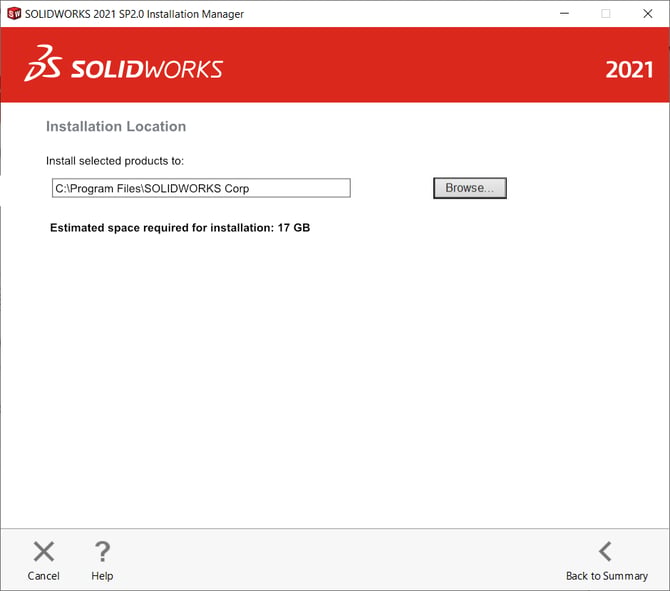
You can change where SOLIDWORKS will be installed.- Click Change next to Installation Location.
- Enter a new location if needed. By default, the software installs in
C:\Program Files\SOLIDWORKS Corp. - Click Back to Summary when finished.
Optional: Toolbox/Hole Wizard Options
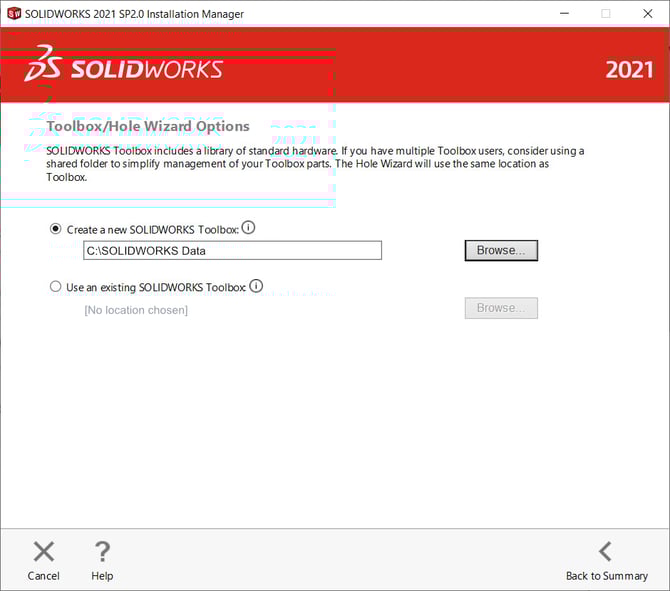
You can change where the Toolbox/Hole Wizard library database will be installed:
-
Click Change next to Toolbox/Hole Wizard Options.
-
Enter a new location if needed. By default, it installs in
C:\SOLIDWORKS Data. -
Click Back to Summary when finished.
-
Once all options are selected, ensure the box I accept the terms of the SOLIDWORKS license agreement is checked, then click Install Now to begin.
-
You will be prompted to point to the server running the SolidNetWork License Manager. Enter port@servername. The default port is 25734, so it will be 25734@yourservername. Click OK.
-
Click Finish, and you will find the SOLIDWORKS application icons on your desktop and in the Start menu.