
Access SOLIDWORKS Software
The SOLIDWORKS software can be downloaded from the SOLIDWORKS website.
- Go to: https://www.solidworks.com/sw/support/downloads.htm
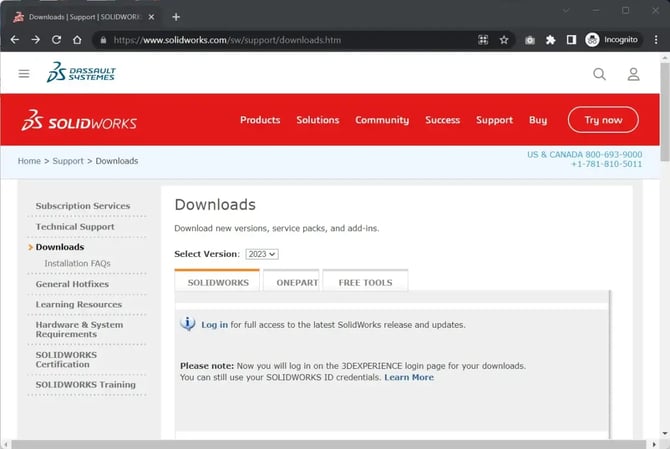
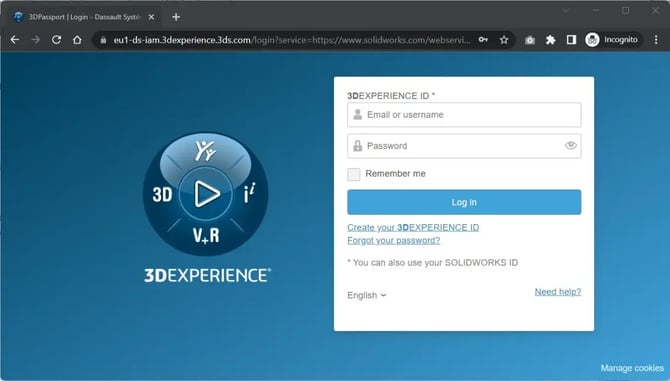
- On the 3DEXPERIENCE login page, sign in.
If you don’t have a 3DEXPERIENCE account, click the link Create your 3DEXPERIENCE ID and create an account.
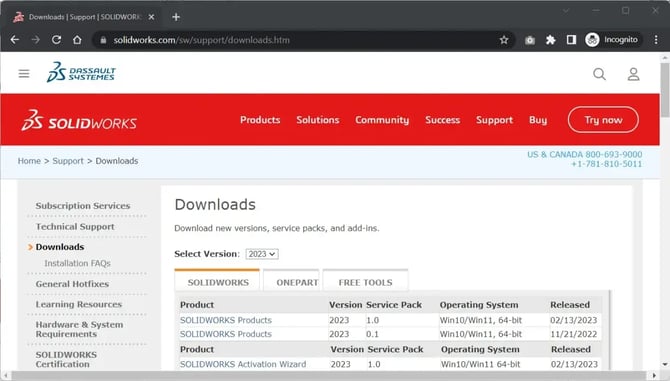
- Once logged in, you will be redirected to the Downloads page on the SOLIDWORKS website.
👉 Having trouble? Contact us at support@ohymycad.com
Choose the SOLIDWORKS Version and Service Pack (SP) you need
On the Downloads page:
- Select the desired version from the drop-down menu.
- Click the SOLIDWORKS Products link next to the Service Pack you need (choose the highest SP number if you are a new customer).
- You must accept the license agreement to download the software by clicking Accept Agreement and Continue at the bottom of the page.

Run the SOLIDWORKS Installation Manager
You can now download the SOLIDWORKS Installation Manager to start the installation process:
- After clicking the Download link, a ZIP file (about 32 MB) will be downloaded from the SOLIDWORKS website.
- Run the SolidWorksSetup.exe file.
- If a window appears asking to allow the application to make changes to your device, click Yes.
- You will be asked to extract the files. Choose your preferred location or keep the default.
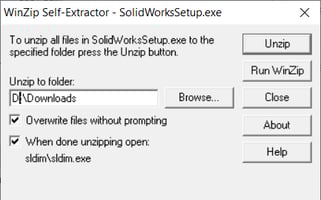
- After extraction, click OK and the SOLIDWORKS Installation Manager will start automatically.
At this point, only the Installation Manager is on your PC, not the installation files.
Using the SOLIDWORKS Installation Manager
Follow the steps indicated by the Installation Manager to proceed with the installation.
The provided key will allow the Installation Manager to determine which modules to download. This can be up to 16 GB. Before starting, make sure you have enough disk space.
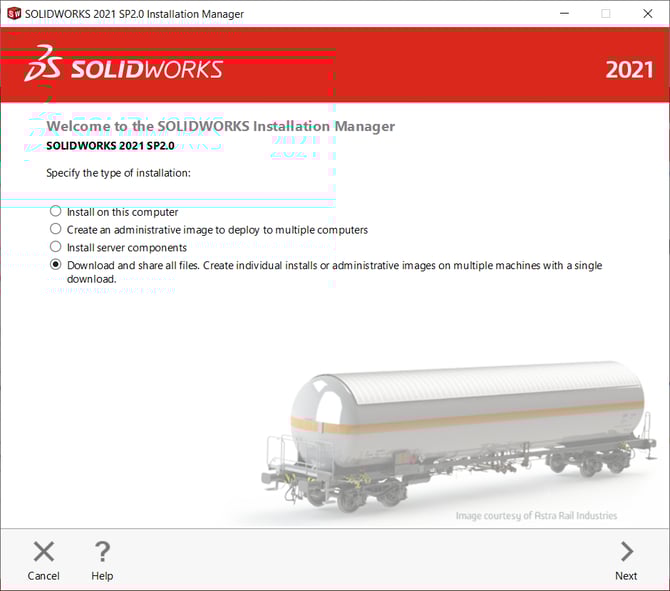
- Select the required installation type from the four options provided.
For a network installation, select Download and share all files. Create individual installations or administrative images on multiple machines with a single download. - Click Next.
- Enter the SOLIDWORKS serial number(s) for the purchased product(s).
You don’t have to install all products at once; you can modify the installation later if needed.
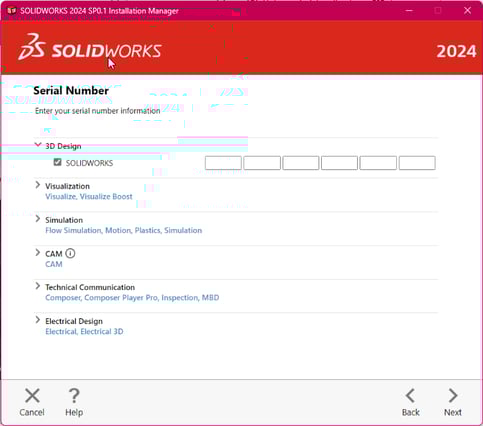
- Click Next to continue. SOLIDWORKS will connect to the online installation server and determine the products you purchased based on the entered serial number.
If an existing version of SOLIDWORKS is found on your machine, you can:
- Upgrade your existing version
- Download a new separate installation
Download Options
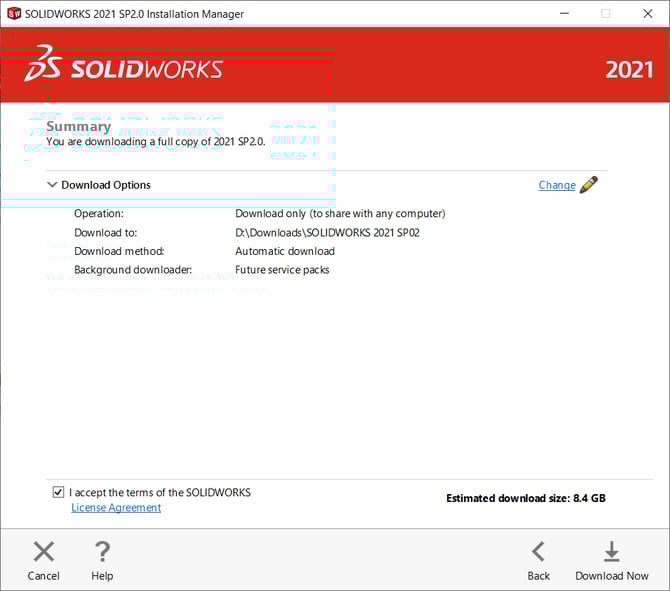
A summary of your action and the estimated download size will appear. In the download options, you can change the download location:
- By default, the folder Documents\SOLIDWORKS Downloads is selected. Click Change then Browse if you want to modify it.
- The option Use the Background Downloader will notify you and automatically download new Service Packs as soon as they are available.
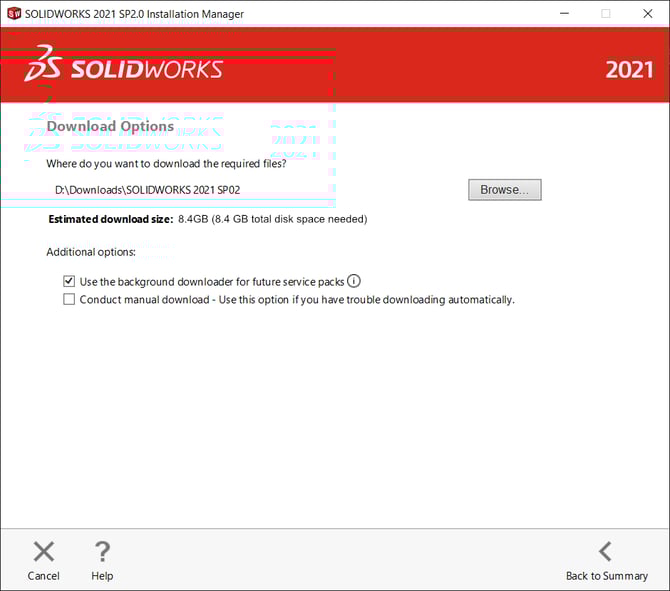
- Select < Back to Summary.
Download SOLIDWORKS Software
- Check the option I accept the terms of the SOLIDWORKS license agreement to finalize the installation.
- Click Download Now to get the installation files.
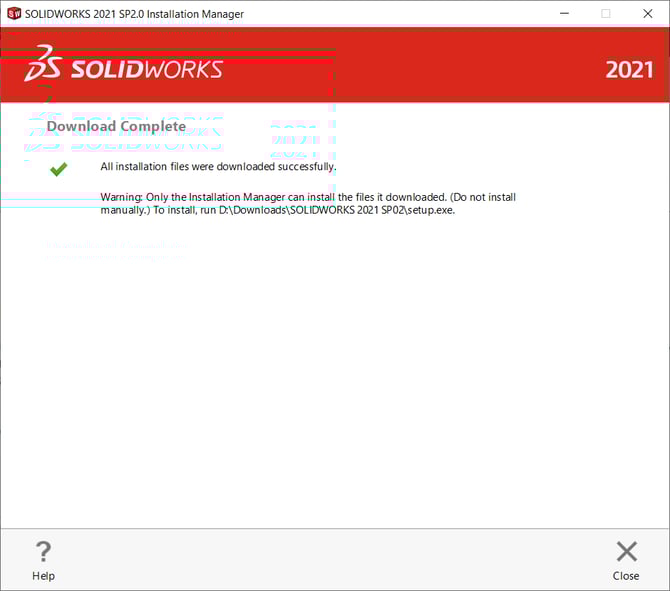
- When the download from the SOLIDWORKS web server is complete, the message Download Complete will appear. Click Close to finish.
Report this problem!
a. Problem solved? Let us know so that we can prevent it from happening again!
b. Still not working? Contact us too!
Contact : support@ohmycad.com