
When installing or updating SOLIDWORKS on your computer, you may encounter a confusing error message :
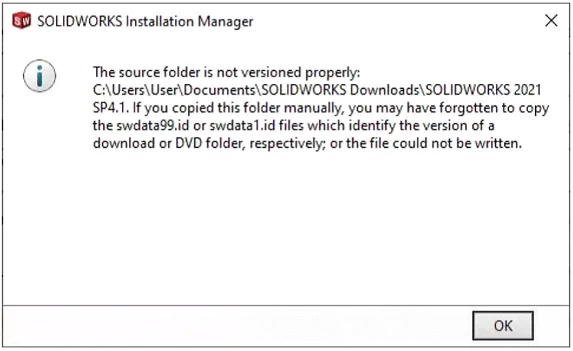
Behing this message lies a simple issue that is very easy to fix.
Why does this error occur ?
SOLIDWORKS relies on the swdata99.id file to identify the version of installation media.
If it is missing or incorrect :
- The Launcher cannot properly recognize the installation files.
- The operation (installation, update, repair) stops.
In short, SOLIDWORKS is unable to correctly “read” the installation folder.
Solution :
There is no need to reinstall SOLIDWORKS. The issue can be resolved by recreating the missing file.
1. Create a file :
Open Notepad (Windows + R) and type the correct SOLIDWORKS version, using the exact format : SOLIDWORKS 20XX SPXX.
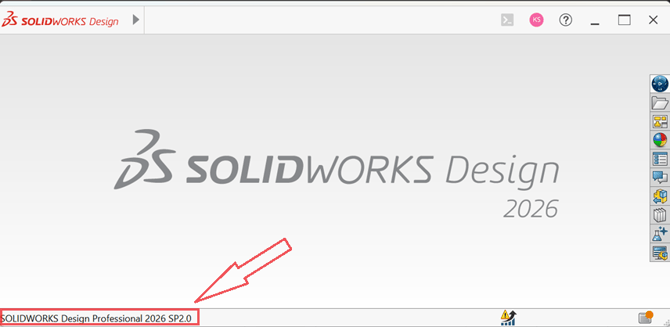
2. Save the file in the correct location:
Save the file in the folder indicated by the error message.
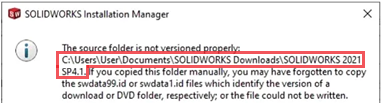
Show file extensions :
Before renaming the file, make sure Windows correctly displays the extensions : Files Explorer > View > File name extensions
3. Rename the file :
Replace the hole name (included .txt) to : swdata99.id
4. Relaunch SOLIDWORKS Installation Manager.
The SOLIDWORKS installation or update should now proceed normally.
Report this problem!
a. Problem solved? Let us know so that we can prevent it from happening again!
b. Still not working? Contact us too!
Contact : support@ohmycad.com