Performance problems are mainly caused by :
- your machine's graphics card
- SOLIDWORKS graphic settings
- your system's hardware ressources
Graphics card management
A dedicated article already exists : Managing your graphics card for SOLIDWORKS
-> It resolves the majority of performance issues.
Recommended SOLIDWORKS Graphics settings
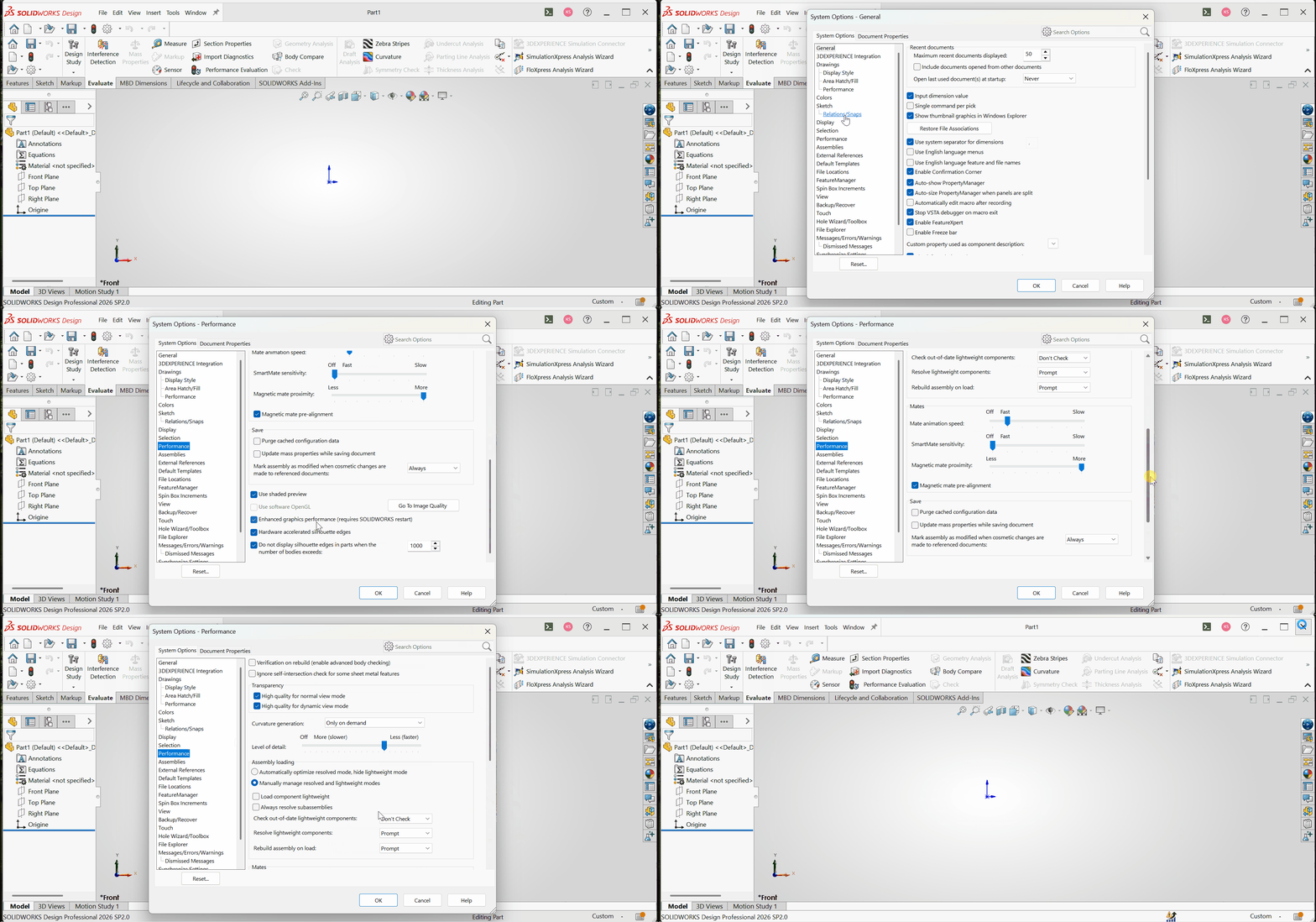
Go to Tools > Options... > System Options > Performance
1. Disable Enhanced graphics performance (if necessary)

2. Check OpenGL mode
OpenGL mode cannot be enabled while functionning normally.

If enabled, performance is significantly reduced and display capabilities are limited.
3. Minimize the Level of detail
A high level of detail can significantly impact performance, especially for large assemblies.

System resources (virtual memory)
If SOLIDWORKS remains slow despite :
- a properly configured graphics card
- optimized graphic settings
The issue may be related to system resources. Follow the System resource optimization procedure for SOLIDWORKS.
Modeling best practices
Modeled threads (real geometry) greatly increase model complexity and reduce performance.
-> It is recommended to use cosmetic threads instead.
.gif?width=670&height=313&name=Animation%20-%20Am%C3%A9liorer%20perf%20(cosmetic%20threads).gif)
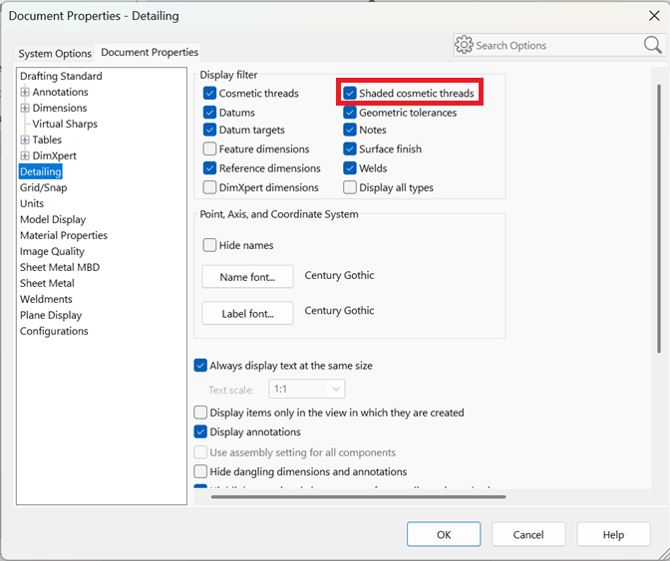
To display cosmetic threads:
Tools > Options.. > Document properties > Detailing > Enable Shaded cosmetic threads