
How to solve this issue?
What to do when broken lines appear as solid in SOLIDWORKS document properties?
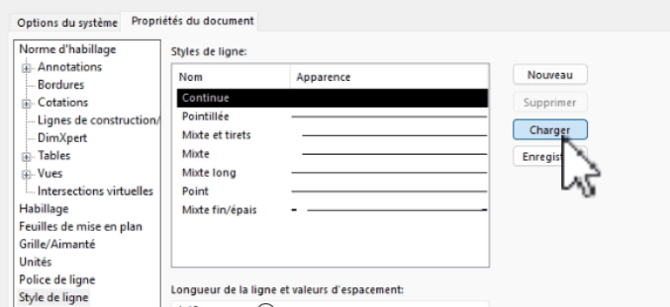
Problem: When working in SOLIDWORKS, sometimes lines can appear as continuous in the document properties, which can make your drawing or model hard to read and lead to production errors.
Check the source of the problem:
The property file used in your drawing may be corrupted due to an imported DWG/DXF file or may be improperly configured.
Open a functional drawing or drawing template to compare and detect any anomalies in the defective file's settings.
Go to Options > Document Properties > Line Style
Expectation vs Reality
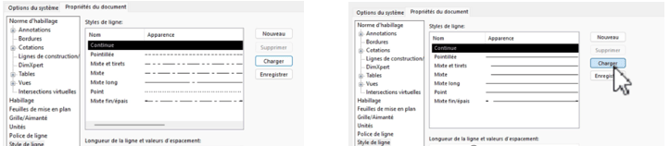
Solution: Modify the Document Property File
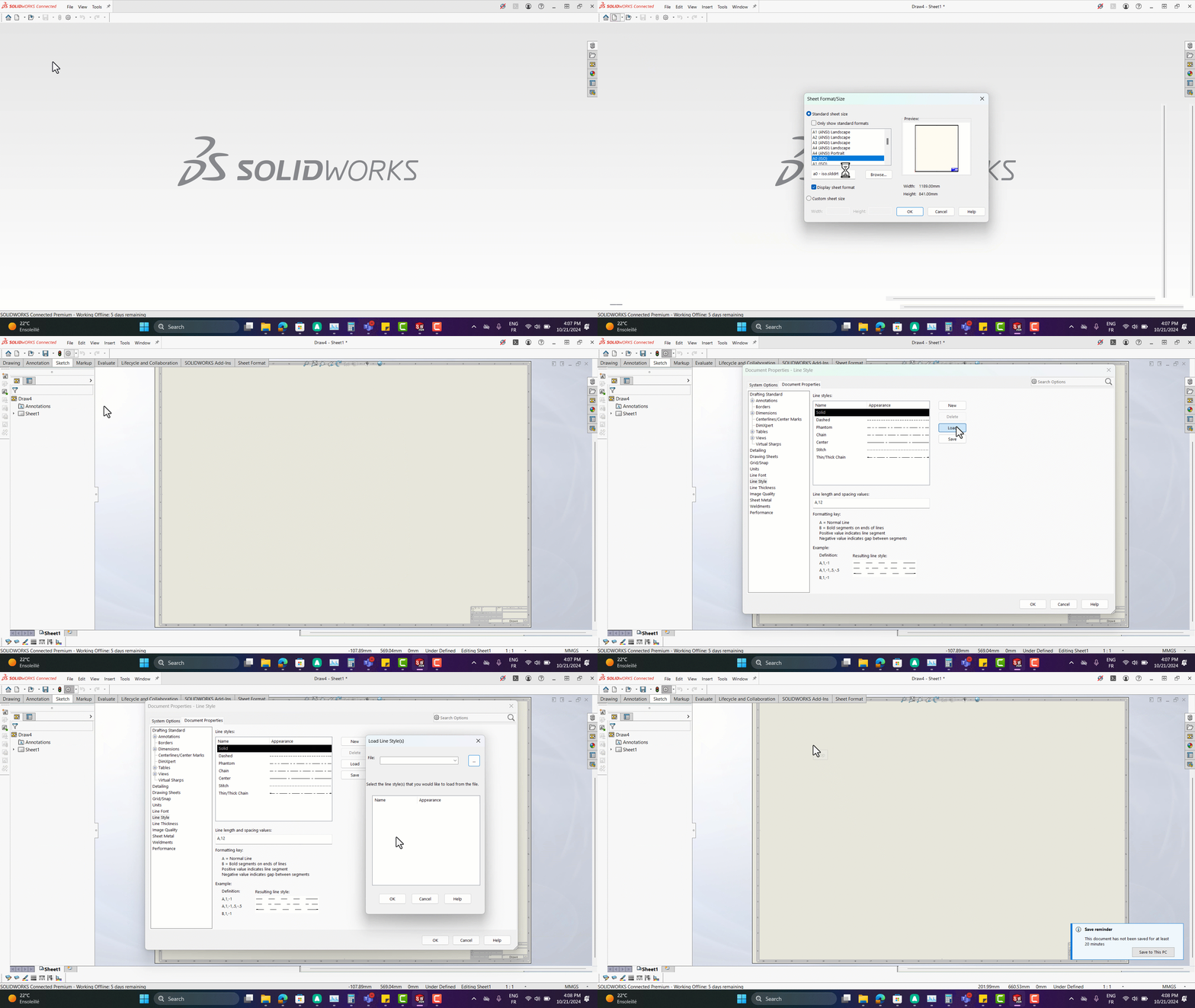
Reinsert a clean property file:
- Download this standard and functional .sldlin property file.
- To reinsert a proper file, go to Option > Document Properties > Line Style > Load
- Select the path of the file you just downloaded.
- Select all lines by holding down the "Ctrl" key on your keyboard.
- Click OK.
Tips
To ensure you always use the correct line styles for your future drawings, you can save the template:
Go to File > Save As Template.
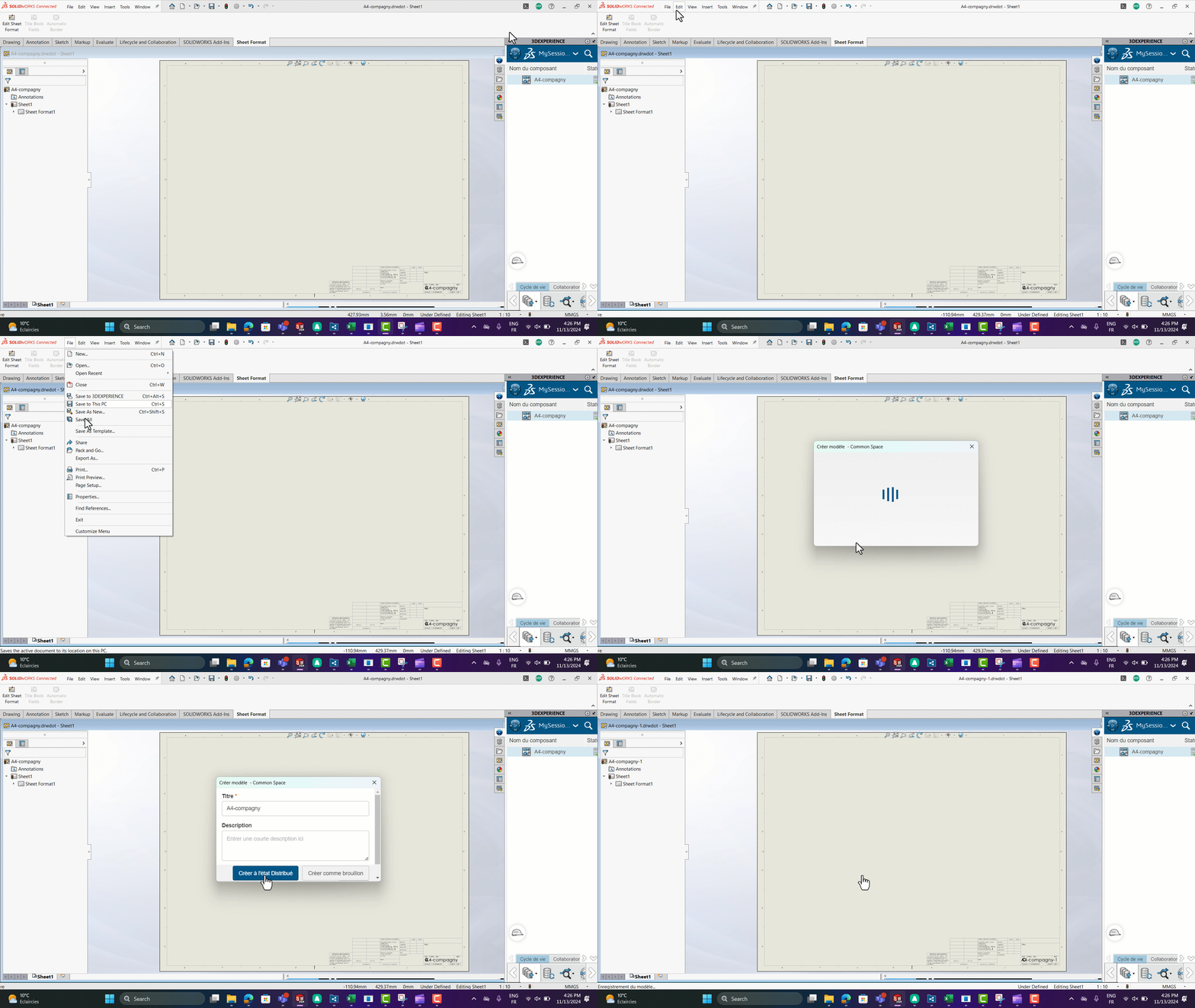
To go further, you can refer to the article on creating and sharing templates.
Report this problem!
a. Problem solved? Let us know so that we can prevent it from happening again!
b. Still not working? Contact us too!
Contact : support@ohmycad.com