
By selecting the appropriate option during installation, you will be able to :
- Adjust your SOLIDWORKS installation later
- Add roles or components when needed
- Manage updates manually
The standard installation remains available, but it offers limited ability to make changes afterward.
Prerequisites :
Before starting, make sure your environment meets the following :
- A recent (ideally certified !) workstation
- Windows 11 Professional
- A supported browser such as Google Chrome or Microsoft Edge
SOLIDWORKS is not supported by macOS !
Step 1 : Activate 3DEXPERIENCE environment
- Open the email entitled : “3DEXPERIENCE SOLIDWORKS® available!”.
- Click : Access my 3DEXPERIENCE platform.
This step uses a license. The first user becomes the platform administrator.
- Log in using your 3DEXPERIENCE account
- Or create a new account if needed
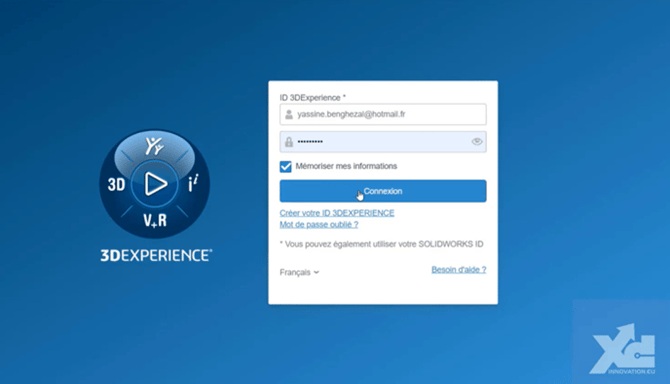
Direct platform access :
https://eu1-ifwe.3dexperience.3ds.com
- Confirm administrator access
- Accept the Customer License and Online Service Agreement (CLOSA)
Step 2 : Verify roles and licenses
- Single-license environments are usually configured automatically
- In other cases, roles must be assigned by the administrator
Step 3 : Start the installation
Launch SOLIDWORKS from the platform
- Click the Compass icon (top left corner)
- Search for SOLIDWORKS
- Open the application
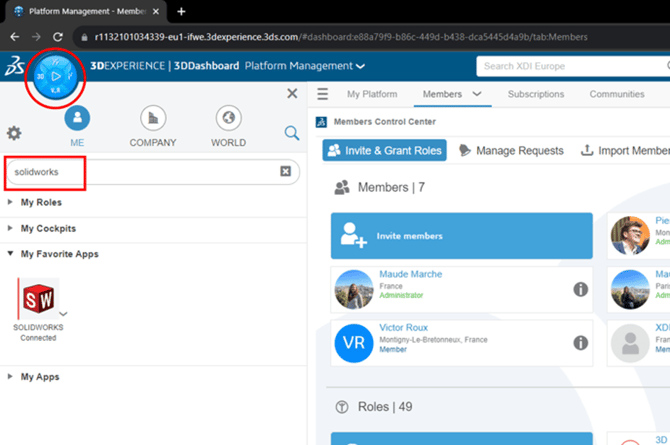
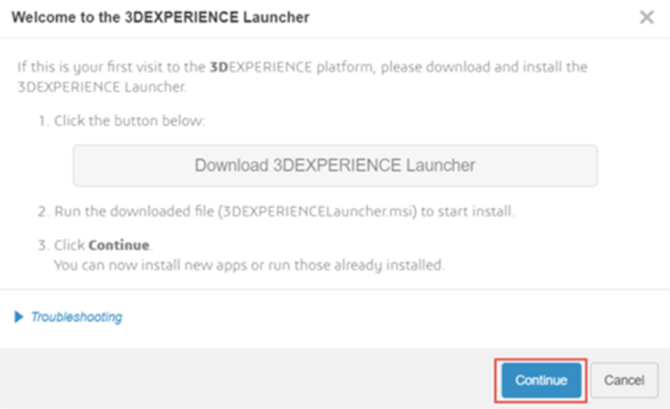
Install the 3DEXPERIENCE Launcher
-
Download the 3DEXPERIENCE Launcher
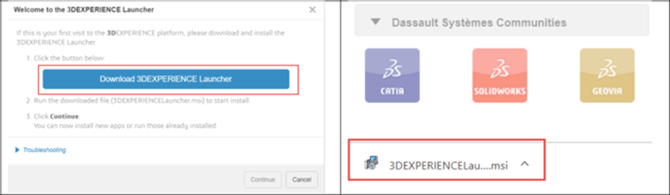
- Run the installer and follow the instructions
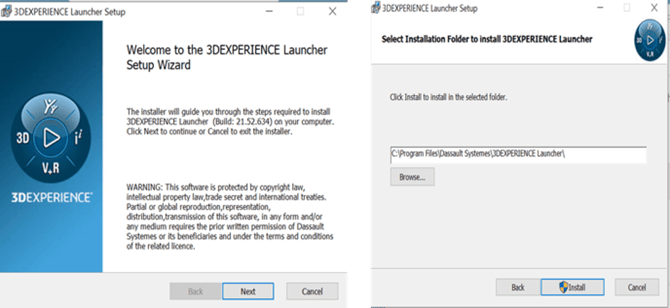
Step 4 : Install SOLIDWORKS
- Click Continue
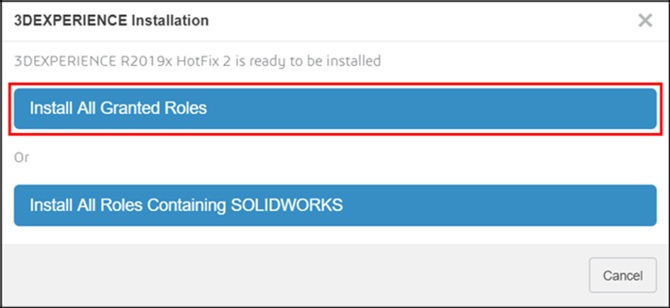
- Select Install all granted roles
Step 5 : Choose your installation mode
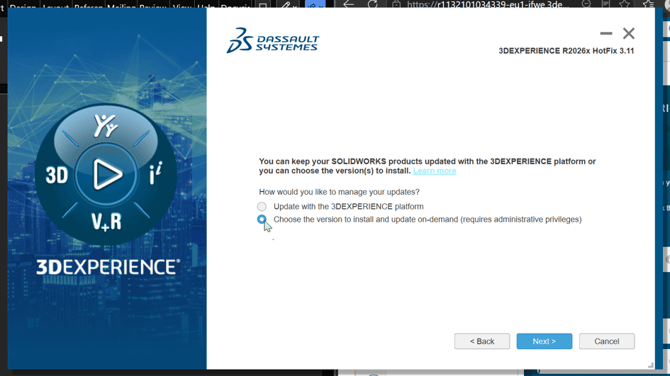
During setup, the Installation Manager will ask how updates should be handled.
Select : Choose the version to install and update on-demand
Why this option is recommended :
- Enables future modifications of SOLIDWORKS
- Allows you to add new roles or components later
- Provides better control over updates
- Allows you to install year T or T-1 versions (example : In 2026, you can install the 2026 version or the 2025 version).
Warning : As indicated in this option, administrative privileges are required to use this feature.
Step 6 : Install the required version of SOLIDWORKS
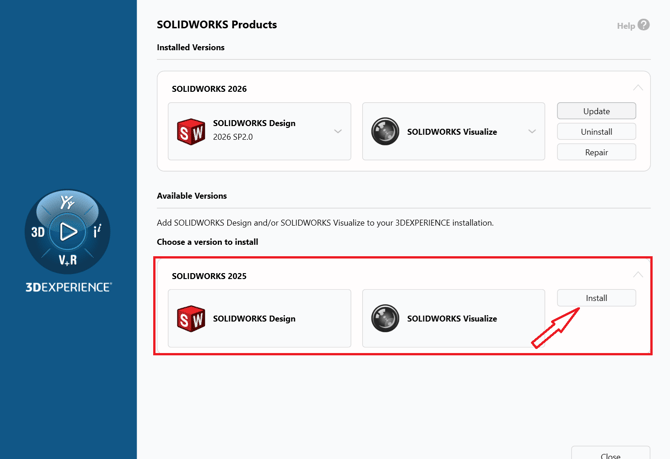
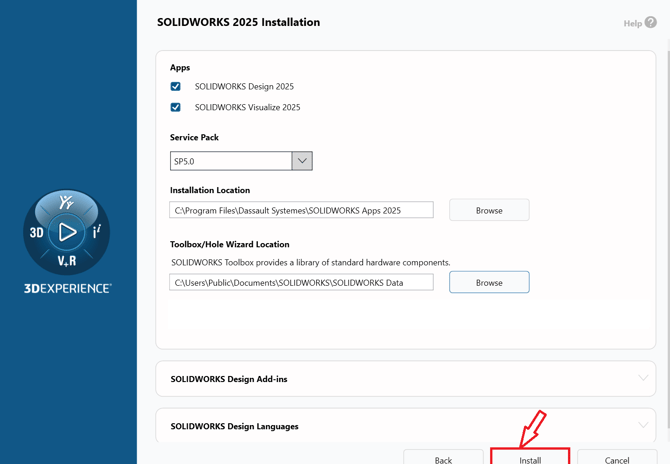
Once the 3DEXPERIENCE SOLIDWORKS Installation Manager is installed, as previously explained, you can launch it and select the SOLIDWORKS version you want to install.
-
Choose either the T or T-1 version of SOLIDWORKS (in this example,T-1 : 2025).
-
Click on Install.
Step 7 : Launch SOLIDWORKS
- Return to the Compass
- Click on SOLIDWORKS.
The application is now ready to use.