
This article complements Improving SOLIDWORKS performance, which we recommend reviewing first.
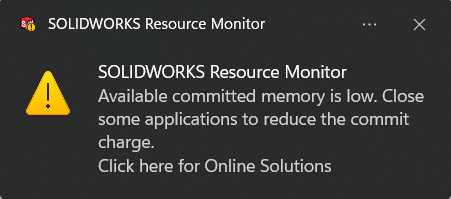
If SOLIDWORKS remains slow despite a properly configured graphics card and optimizes graphics settings, and/or if a message indicates that system resources are limited, this guide will help you optimize your machine's virtual memory.
SOLIDWORKS may display this message :
Optimize virtual memory
When RAM is insufficient or heavily used, Windows relies on virtual memory.
-
Go to Advanced System Settings> Advanced > Performance > Settings > Advanced
- Modify virtual memory
- Uncheck :
.png?width=454&height=37&name=Screenshot%20(2).png)
- Personalize virtual memory
It is recommended to set virtual memory to 1 to 2 times the machine's RAM if it is low.
If RAM is high, the impact is lower and the message should not appear.

After modifying virtual memory, this message appears :
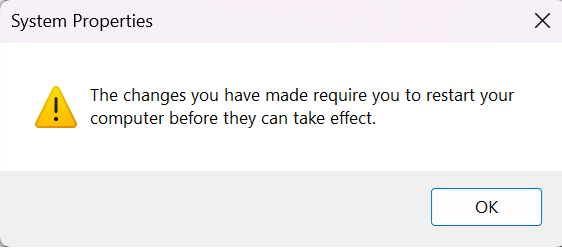
Restarting the computer is mandatory, otherwise the changes will not be applied.
Report this problem!
a. Problem solved? Let us know so that we can prevent it from happening again!
b. Still not working? Contact us too!
Contact : support@ohmycad.com