
Issue :
When launching SOLIDWORKS, it may take a certain time to connect to 3DEXPERIENCE, and sometimes a blank or blue page may appear.
In this guide, we will walk you step by step through how to resolve this issue.
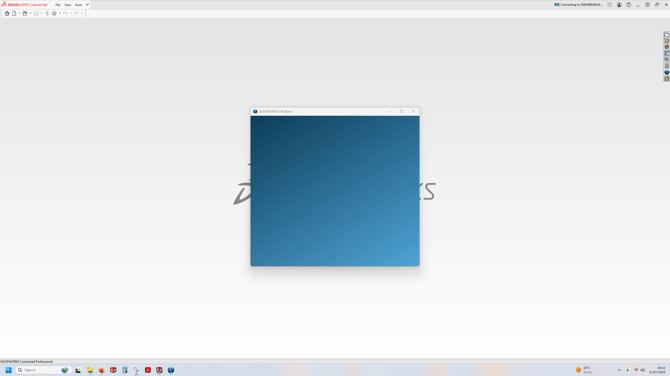
STEP 1 : Close SOLIDWORKS
STEP 2 : Open Task Manager
From your Windows search barn search for Task Manager, or press Ctrl + Shift + Esc on your keyboard.
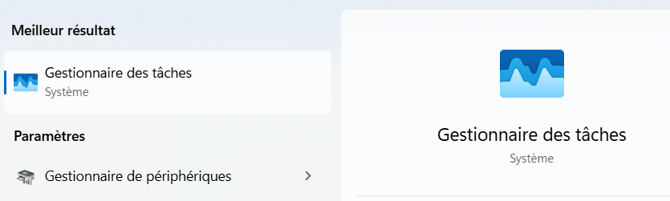
STEP 3 : End SOLIDWORKS and 3DEXPERIENCE processes
Click "End Task" for the following processes if they are present:
- SolidWorks
- Solidworks_fs
- SOLIDWORKS Resource Monitor
- SOLIDWORKS Visualize Queue Server
- Solidsurfacing Application
- CEF Sub Process
- Connector for SOLIDWORKS
- ENOPLMCSAClient
- WebView2 Manager
STEP 4 : Delete folders
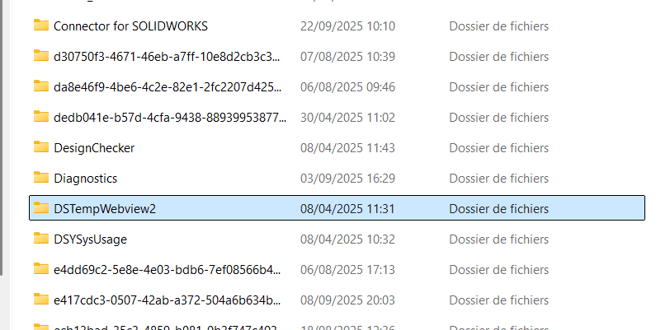
Open File Explorer and delete the folder "DSTempWebview2" located at the following path: %LocalAppData%\temp\
Restart your computer.
STEP 5 : Launch SOLIDWORKS from 3DEXPERIENCE platform
Launch SOLIDWORKS from the 3DEXPERIENCE platform.
To do so, connect to your space using the following link:
https://eu1-ifwe.3dexperience.3ds.com
A small 3DEXPERIENCE window may appear asking you to sign in again.
If SOLIDWORKS still does not connect to 3DEXPERIENCE, log out from the 3DEXPERIENCE tab.
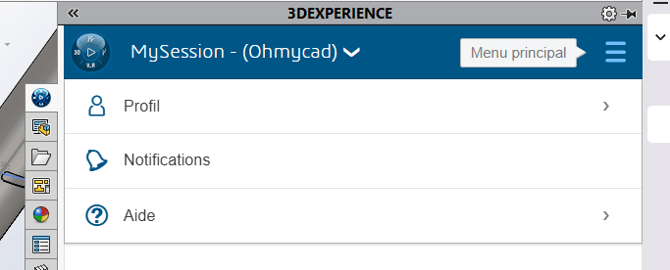
Click Main Menu >> Profile >> Log out
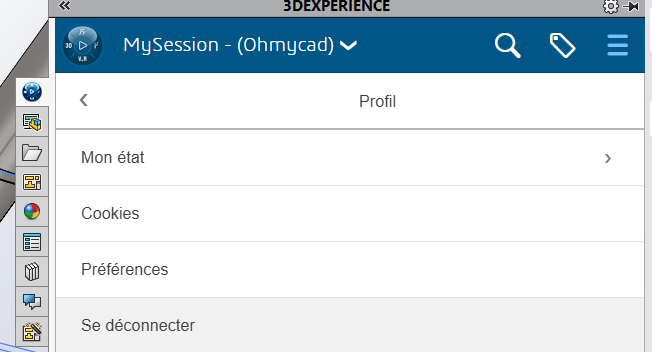
Once logged out, log back in.
Report this problem!
a. Problem solved? Let us know so that we can prevent it from happening again!
b. Still not working? Contact us too!
Contact : support@ohmycad.com