Issue :
In some environments, antivirus or firewall software may :
- Block required files.
- Make certain features unavailable.
- Prevent downloads.
- Slow down or prevent SOLIDWORKS from starting.
Disabling the antivirus is not recommended.
In some cases, even disabled, other processes can block files required by SOLIDWORKS Design.
Solution : Explicitly allow files in the antivirus and firewall
Step 1: Add exceptions in the firewall
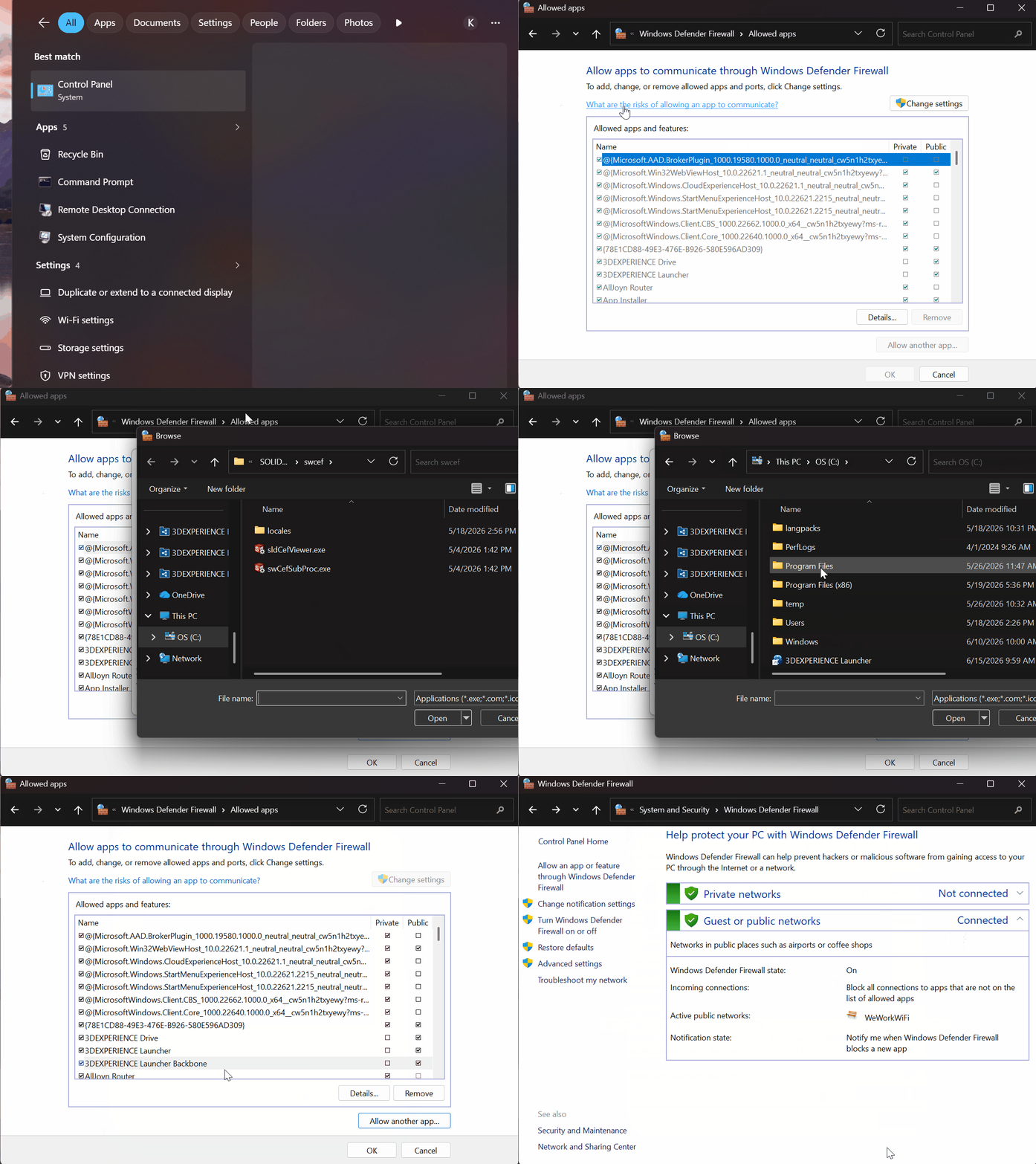
Access Windows Defender Firewall:
-
Control panel
- System and Security
- Windows Defender Firewall
- Allow an app
- Change settings
- Allow another app
Add the following files :
"C:\Program Files\Dassault Systemes\3DEXPERIENCE Launcher\3DEXPERIENCELauncher.exe"
"C:\Program Files\Dassault Systemes\3DEXPERIENCE Launcher\3DEXPERIENCELauncherBackbone.exe"
"C:\Program Files\Common Files\SolidWorks Shared\swCef\swCefSubProc.exe"
"C:\Program Files\Dassault Systemes\SolidWorks 3DEXPERIENCE\win_b64\code\bin\ENOPLMCSAclIent.exe"
OR
"C:\Program Files\Dassault Systemes\B427XCADConnectors\win_b64\code\bin\ENOPLMCSAclIent.exe"
Allow these files for following network types : Domain, Private, Public (according to your organization's policies).
If a third-party antivirus is installed
- Open the antivirus console
- Check the exception list
- Add the same files listed above
Step 2: Clear Internet Data
Delete the hole history before open SOLIDWORKS.
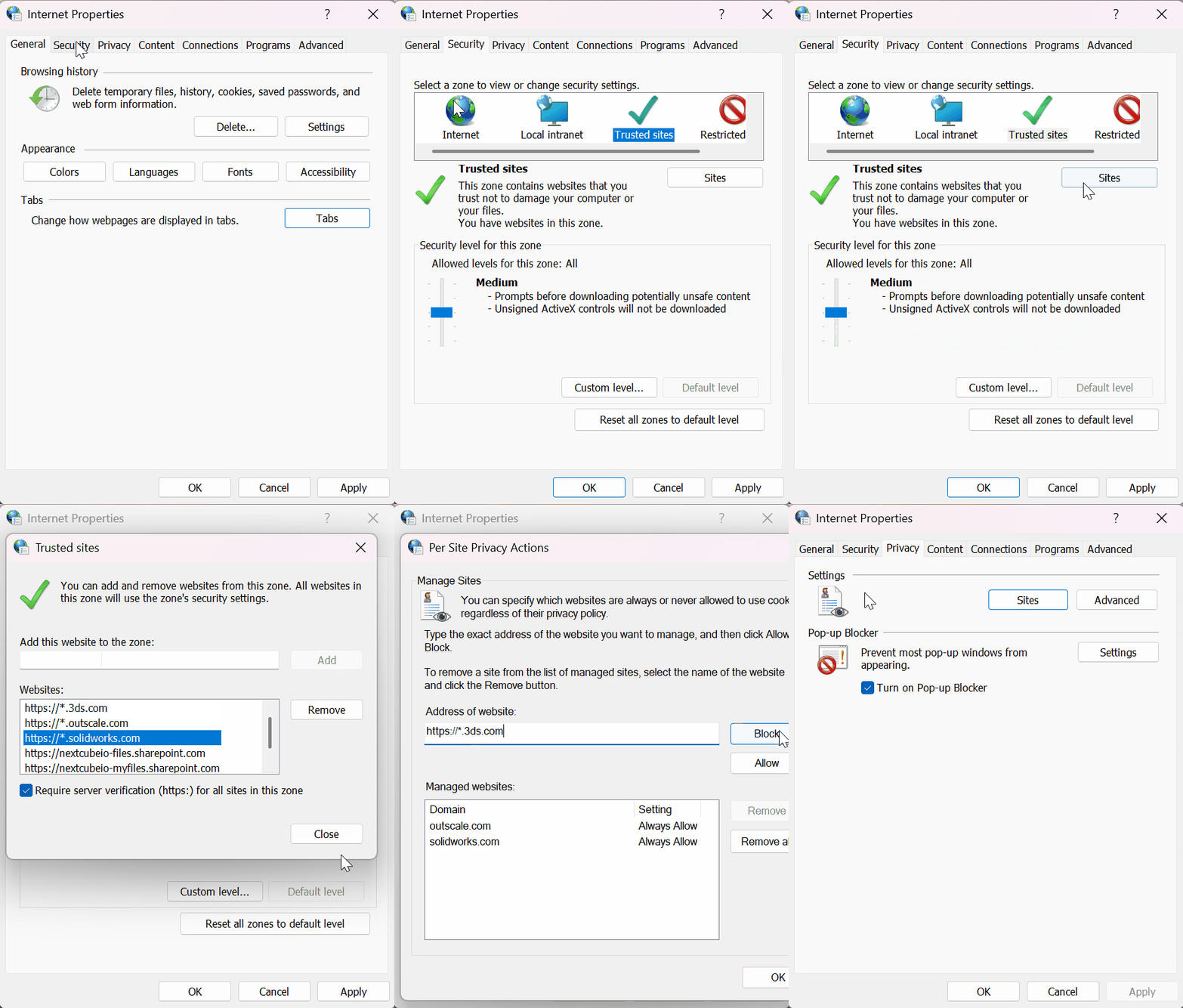
Open Control Panel > Network and Internet > Internet Options > General > Browsing history > Delete..
This helps prevent issues cqused by old temporary files.
Step 3: Verify Internet settings
Go to Network and Internet > Internet Options :
Advanced tab :
✅ Enable : Use TLS 1.2
Enable DOM Storage
❌ Disable : Enable Enhanced Protected Mode (if available)
Security tab :
- Set Security level to Medium
- Add to Trusted sites :
Privacy > Settings > Sites :
✅ Allow :