
In a SOLIDWORKS environment, it may be necessary to add additional modules to an existing SOLIDWORKS license.
If you followed either the manual or Desktop SOLIDWORKS installation procedure, this article explains how to easily add your add-in key without reinstalling the software.
Method 1: Add a key in SOLIDWORKS Design
Procedure :
Access the Installation Manager :
-
Open the Start menu.
-
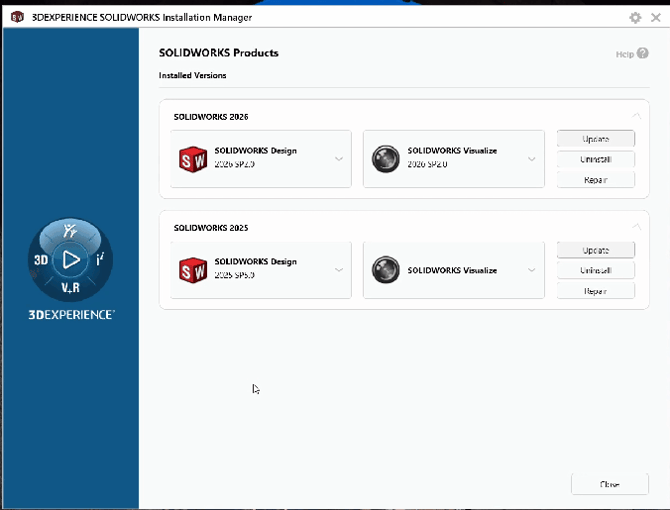
Launch 3DEXPERIENCE SOLIDWORKS Installation Manager.
-
Select the SOLIDWORKS Connected version you want to modify.
Modify your license :
-
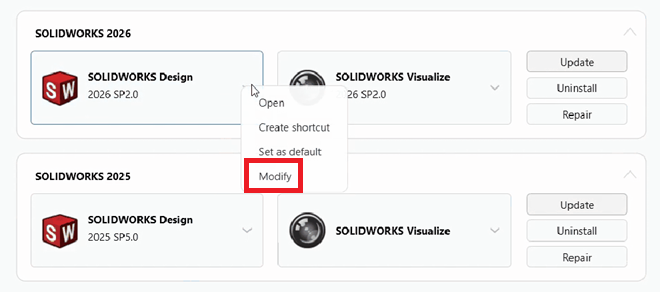
Open the dropdown menu for your SOLIDWORKS version.
-
Click Modify.
Add the new key :
-
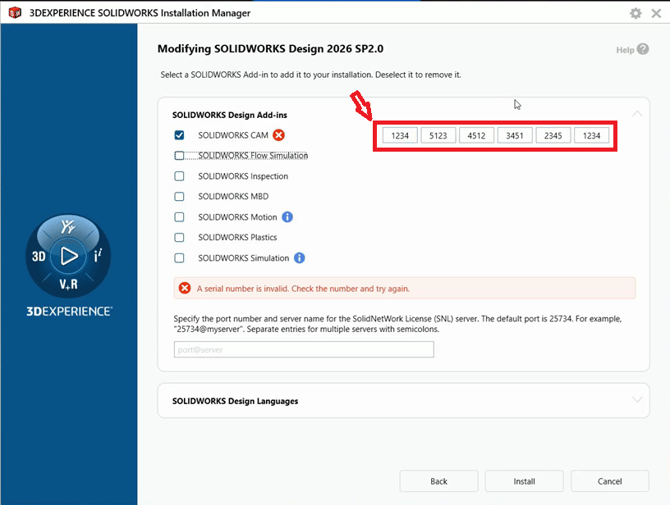
Select the component to add under SOLIDWORKS Desing Add-ins.
-
Enter the license key.
Launch the installation :
Click Install.
Method 2 : Add the key on SOLIDWORKS Desktop
This method allows direct access to modify an existing installation.
Procedure :
Access the Installation Manager :
-
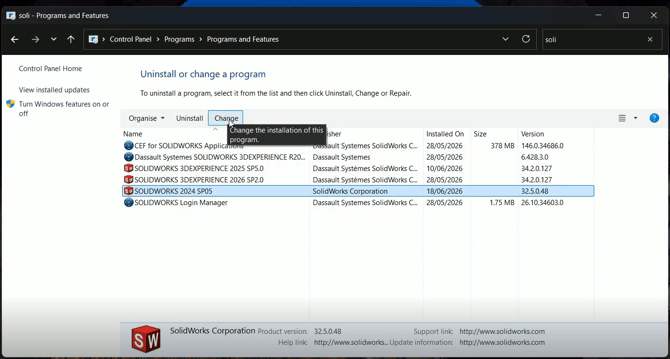
Open the Control Panel.
-
Go to Program and Features.
-
Search for SOLIDWORKS, select the version you want to modify.
-
Click Change.
Modify your license :
Once in the Installation Manager, select Modify your installation.
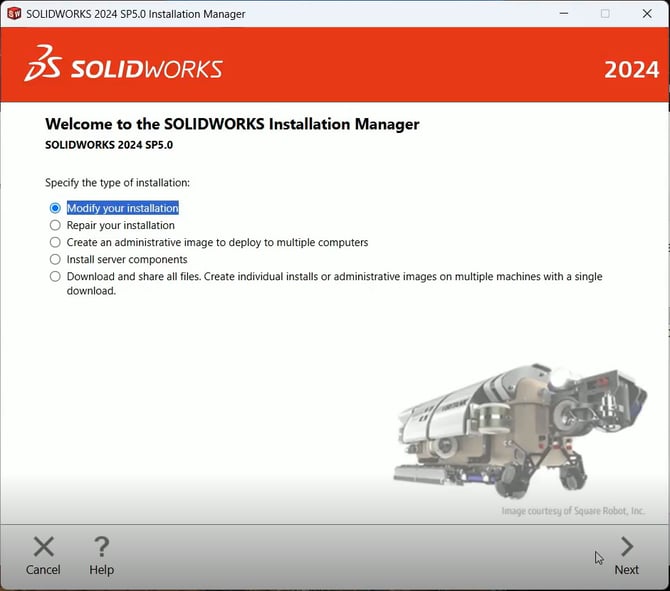
Add your key :
Enter the Add-in license key.
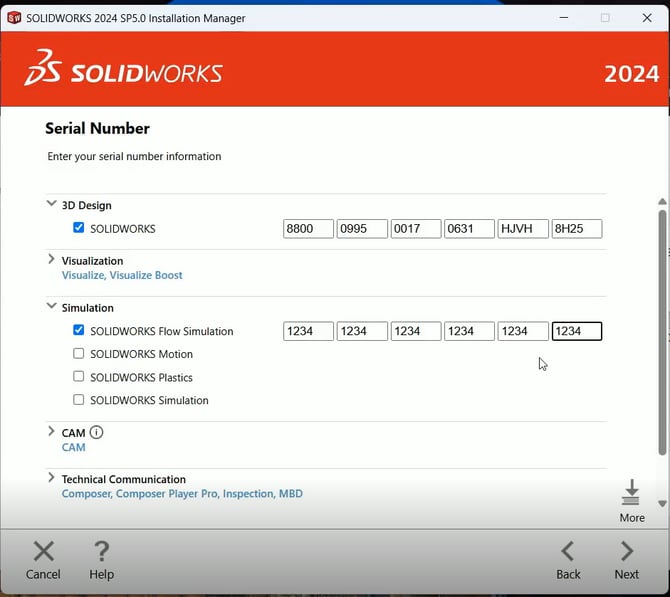
Run the installation :
Click on Next then Install.
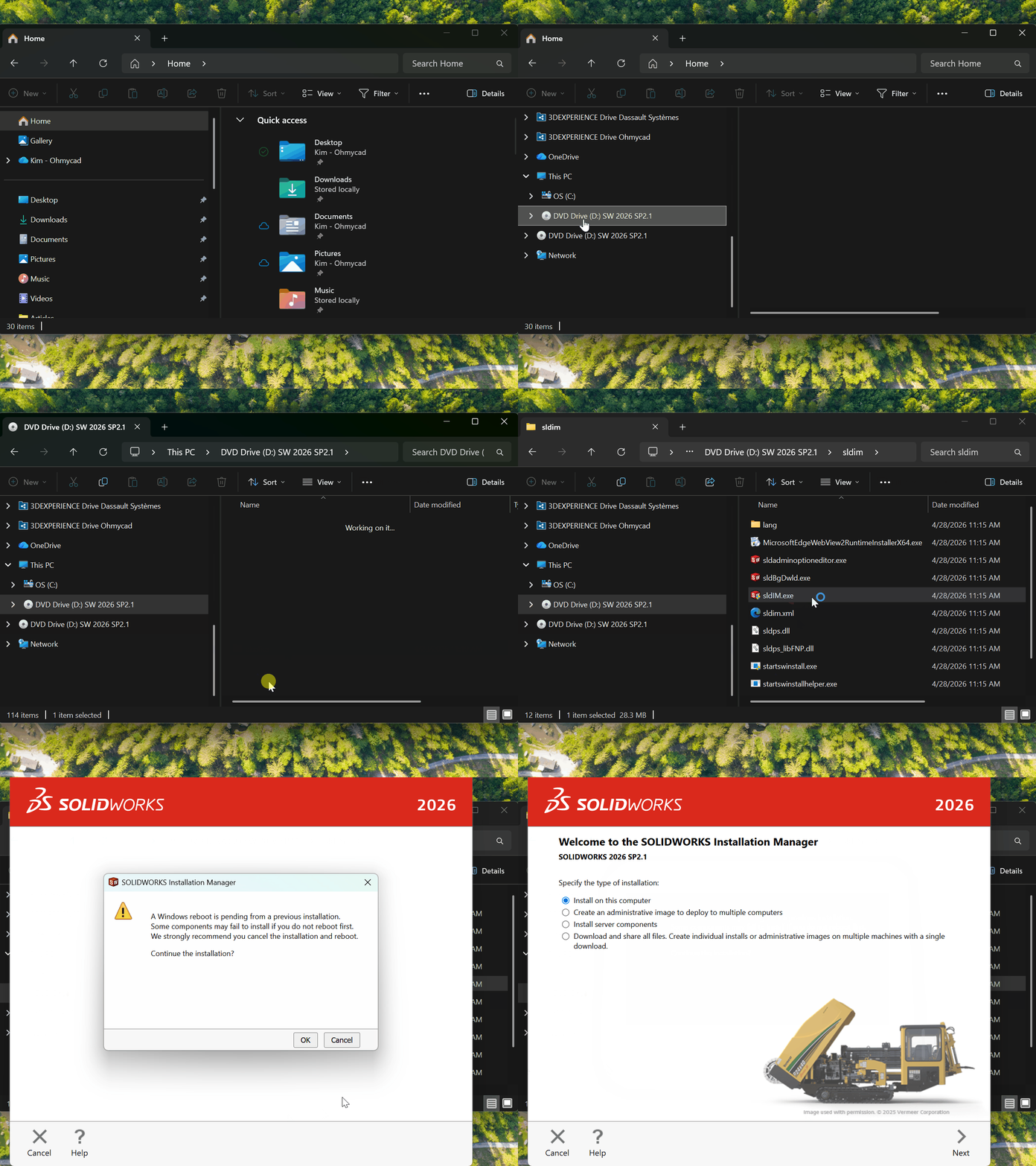
In some cases, the Modify option may not work for SOLIDWORKS Desktop.
In this situation :
-
Open the ISO file used for the installation.
-
Lauch sldmin > sldIM.exe (SOLIDWORKS Installation Manager).
This allows you to reopen the Installation Manager and access the Modify your installation option.
It is therefore strongly recommended to keep the ISO file after installation, as it can be required for future modifications.
Report this problem!
a. Problem solved? Let us know so that we can prevent it from happening again!
b. Still not working? Contact us too!
Contact : support@ohmycad.com