
Have you renewed your SOLIDWORKS Design licenses, but some users are still experiencing access issues?
Don't worry. In most cases, this is not a licensing issue, but simply an outdated license role that is still associated with the user's account.
Best Practice
Before renewing your licenses, refer to the dedicated article and follow the procedure to automatically remove expired roles.
Why Does This Issue Occur?
When a license is renewed, new roles are assigned to your account.
However, roles associated with older licenses (now expired) may still remain in some users' profiles. This can create inconsistencies in permissions and prevent the platform from correctly identifying active licenses.
The Solution: Clean Up User Roles
A 3DEXPERIENCE Administrator can quickly check and resolve the issue.
Step 1
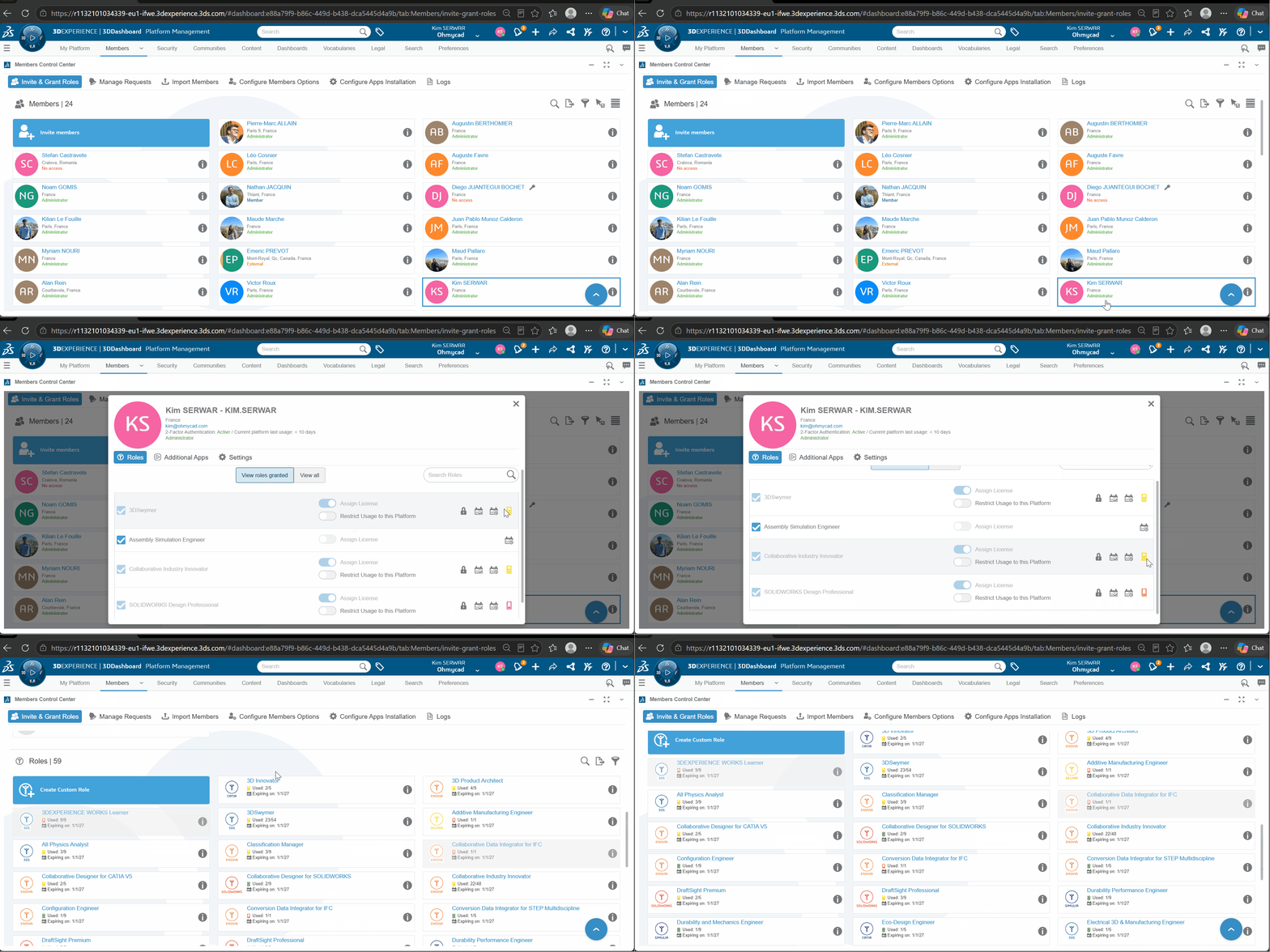
Log in to the 3DEXPERIENCE platform using an administrator account, then access the Platform Management dashboard.
Step 2
Search for the affected user and display the roles assigned to their account.
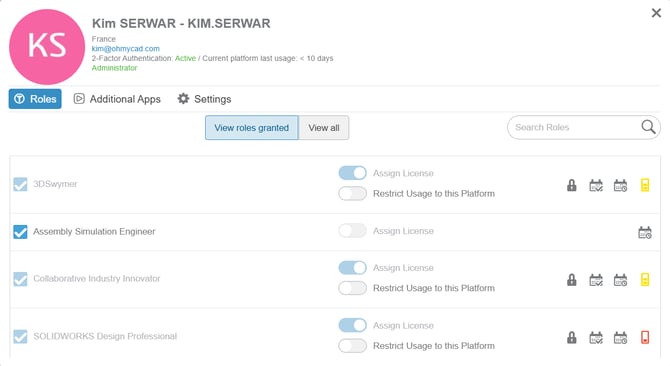
Step 3
In the list of roles, active licenses can be identified by the battery icon displayed next to the role name.
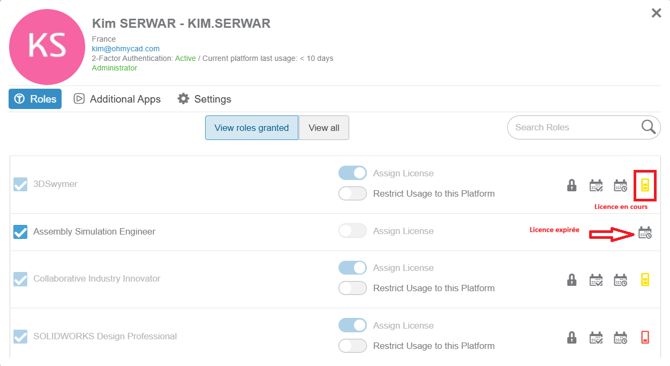
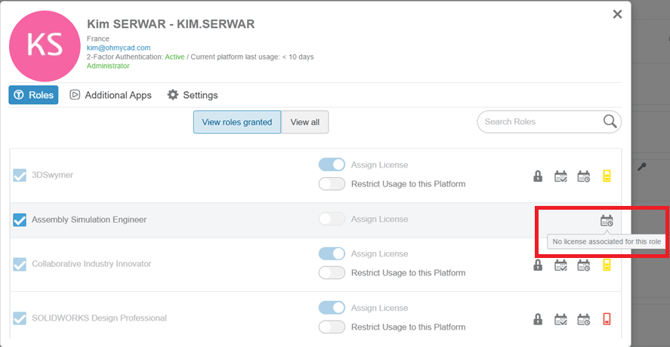
- Keep only the roles associated with active licenses.
- Remove roles linked to expired licenses (those without a battery icon)
If you are unsure whether a role is still valid, go to the Roles tab and verify that the role assigned to the user is present and linked to the currently active license account. If it is not, the role is typically outdated and originates from a previous, expired license. It can be safely removed.
Step 4
Log out of the platform, then log back in to 3DEXPERIENCE.
Verify that the license is now correctly assigned and that the user can access the expected features.