
Now that you understand how SOLIDWORKS Design manages the opening of files, it becomes easier to identify situations where conflicts may occur between your local cache and the 3DEXPERIENCE platform.
These cases are quite common, especially in a collaborative working environment.
Why do these conflicts occur ?
To ensure good performance, SOLIDWORKS always prioritizes opening files from the local cache rather than directly from the cloud.
This can create a difference between :
- What the platform 3DEXPERIENCE sees (the latest available version)
- What SOLIDWORKS remembers (the last version stored in your local cache)
In a multi-user context, this situation can lead to confusion between the different versions being opened.
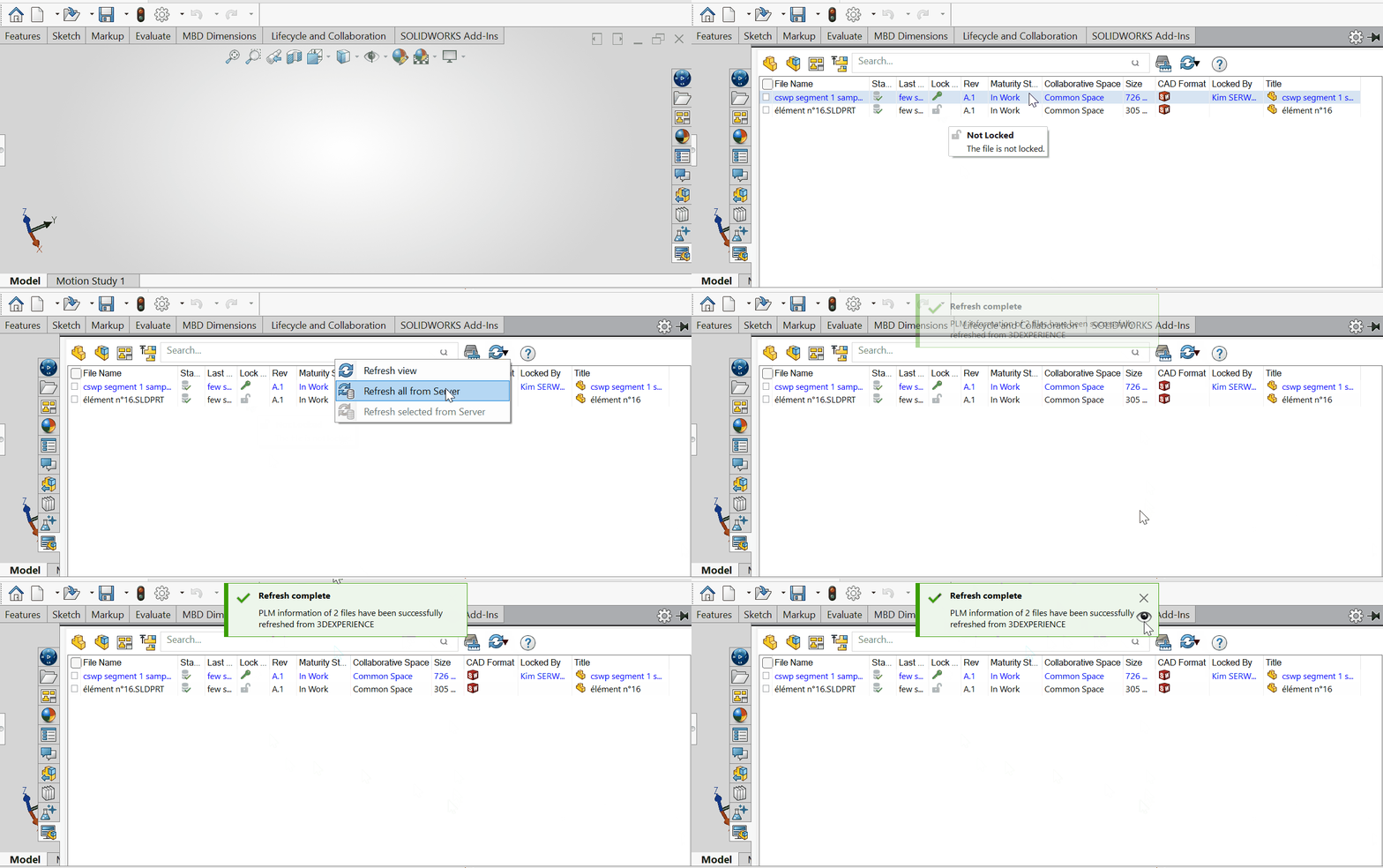
Quick solution : Refresh from Server
In SOLIDWORKS > 3DEXPERIENCE files on This PC, a Refresh from Server option is available.
This function allows you to :
- Retrieve data directly from the 3DEXPERIENCE platform
- Resynchronize your file with the most recent version
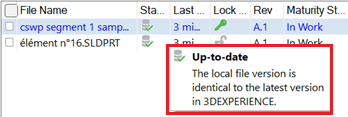
SOLIDWORKS highlights any differences through the file status, making it easy to quickly identify a mismatch.
Manual solution : Clear the Local Cache
If the issue persists, it is recommended to clear the local cache.
- Delete the SOLIDWORKS local cache by following our dedicated procedure.
- Reopen the file directly from the 3DEXPERIENCE platform.
- Allow SOLIDWORKS to re-download all the data from the correct version.
Report this problem!
a. Problem solved? Let us know so that we can prevent it from happening again!
b. Still not working? Contact us too!
Contact : support@ohmycad.com