
Issue:
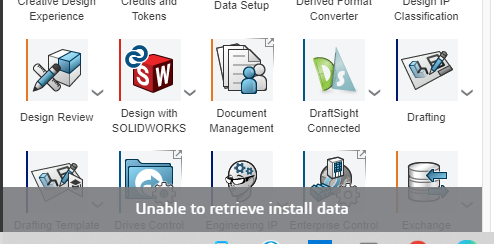
When launching SOLIDWORKS or other apps from the 3DEXPERIENCE platform, you may receive the following error message:
“Unable to retrieve install data”
Known fixes:
1. If you are using SentinelOne antivirus
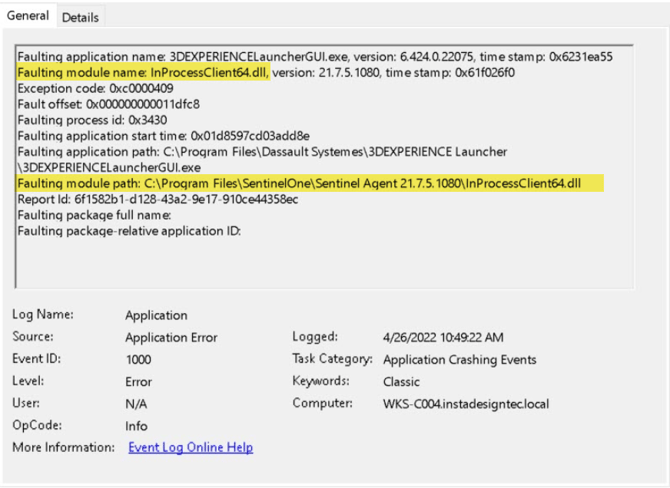
The SentinelOne antivirus may prevent the 3DEXPERIENCE Launcher from opening.
When checking the Windows Event Viewer, it shows a faulting module: InProcessClient64.dll.
Fix
You or your IT must add an exception into your Sentinel One antivirus for the following program:
C:\Program Files\Dassault Systemes\3DEXPERIENCE Launcher\3DEXPERIENCELauncherBackbone.exe
IMPORTANT
Restart your workstation once the exception is added.
If you have installed your 3DEXPERIENCE Launcher at a custom location, you will need to add that custom location as an exception instead.
2. Local Intranet Security settings are blocking communication with the Launcher
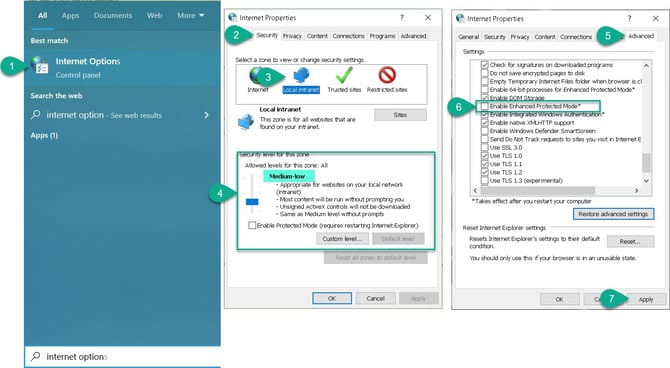
The security sttings configured for the Windows Local Intranet zone may prevent communication between the 3DEXPERIENCE platform and the 3DEXPERIENCE Launcher.
Fix
- Open Internet Options from the Windows Start menu. The Internet Properties window opens.
- Go to the Security tab.
- Click on the Local intranet icon.
- Make sure that the level is NOT set to "High " (for example: "Medium").
Note: If you have custom settings, you might want to select Default level to reset the value. - Go to the Advanced tab.
- Make sure that the option Enable Enhanced Protected Mode checkbox is cleared/disabled.
- Click Apply.
3. A firewall rule is blocking the Launcher
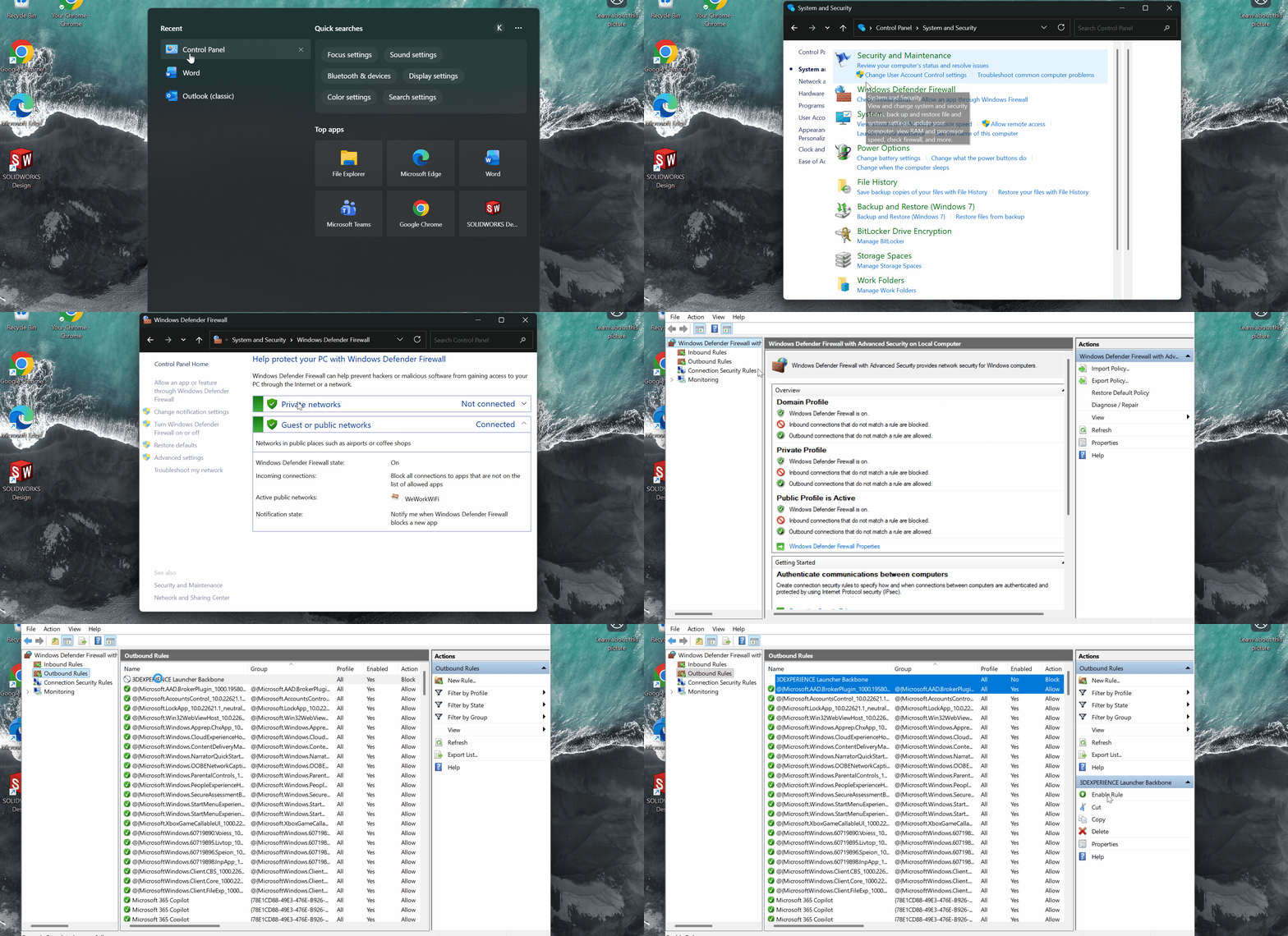
An outbound rule in Windows Defender firewall may prevent the 3DEXPERIENCE Launcher from accessing the services required to launch applications.
Fix
- Open the Windows Defender firewall :
- Control Panel
- System and Security
- Windows Defender firewall
- Access the Advanced settings.
- Select Outbound Rules.
- Look for rules blocking 3DEXPERIENCE Launcher applications.
Example :
"C:\Program Files\Dassault Systemes\3DEXPERIENCE Launcher\3DEXPERIENCELauncherBackbone.exe"
"C:\Program Files\Dassault Systemes\3DEXPERIENCE Launcher\3DEXPERIENCELauncher.exe" - Select the rule.
- Click Disable Rule.
To review the details of a friewall rule, select the rule and open its Properties.
4. Internet cache is corrupted or outdated
Temporary files ou corrupted cookies may prevent the Launcher from retrieving installation data correctly.
Fix
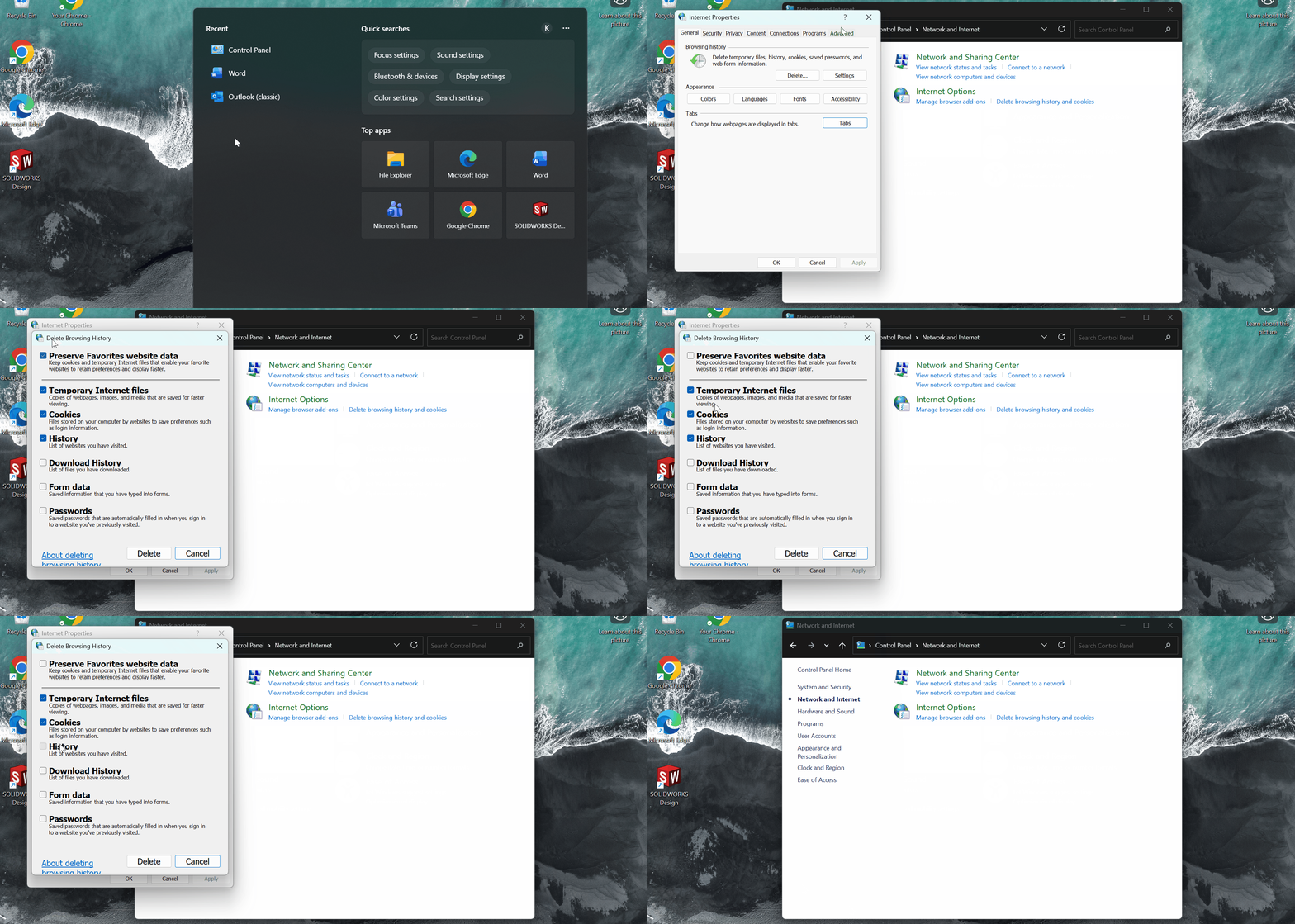
- Open Internet Properties :
- Control Panel
- Network and Internet
- Internet Options
- Click Delete under the General tab.
- 🔲Uncheck : Preserve Favorites website data.
- ☑️Check : Temporary Internet files / Cookies / History.
- Click Delete.
You can also manually clear temporary files :
- Select Settings in the General tab.
- Click View files.
- Delete the temporary files.
5. Proxy or browser settings are blocking communication with the platform
In some network environments, proxy settings or specific browser configurations may prevent communication with the 3DEXPERIENCE platform.
Fix
Try connecting to the platform using a different browser.
Report this problem!
a. Problem solved? Let us know so that we can prevent it from happening again!
b. Still not working? Contact us too!
Contact : support@ohmycad.com